
A points card for your shops, inside your app. Customers collect points when they buy, your staff add those points from their own phone, and customers spend them on rewards you choose. Nobody needs a paper card, and nobody needs a separate login: everyone uses the app account they already have.
Overview #
Who does what
| Role | Where | Can |
|---|---|---|
| You, the app owner | MAB side | Add shops, set how many points each euro is worth, add rewards, decide who is staff, watch the points dashboard, correct a balance by hand |
| Staff | In your app, signed in | Switch to Staff Mode, pick their shop, scan the customer's card and add points, or hand over a reward |
| Customer | In your app, signed in | See their points and their code, see the rewards they can get, and look back at everything they earned and spent |
How points work
- Every shop has its own conversion: how many points one unit of currency is worth there. A shop with a conversion of 2 gives 20 points for a 10 € purchase.
- A shop can require a minimum spend before any points are given.
- Points can expire after a number of days you set per shop, or never.
- Points are spent oldest first, so what expires is only what was never used.
- A balance can never go below zero, not even when two people redeem at the same moment.
What customers get
- A card with their available points and a warning when some are expiring.
- Their QR code and member code, which staff scan or type to serve them.
- The rewards they can get, and how many points each one costs.
- Their history: every time they earned, spent or were given points.
What staff get
- A Staff Mode switch inside the same app, visible only to them.
- The list of shops they are assigned to.
- Scan or type a customer's code, see that customer's balance, then add points — either a number of points, or the amount spent, which the shop's conversion turns into points.
- The customer's available rewards, ready to hand over.
What you get
- A dashboard: members, active customers, points earned and points redeemed, for a period and a shop you choose.
- Shops, rewards and members in one place.
- The power to make any app user staff, and to take it away again.
- A manual correction on any balance, with a reason kept next to it.
Good to know before you start
- Customers and staff are your app users. Nobody registers twice; a person becomes a member the first time they open the Fidelity Card in your app.
- Staff are made, not invited. Assign a member to at least one shop and they become staff; remove every shop and they are a normal customer again.
- Staff cannot serve themselves. The module refuses points and redemptions on the staff member's own card.
- Points belong to the shop that gave them, including its expiry rule, but customers spend them on any reward you offer.
MAB side guide #
Everything here happens in the Modules screen, after you add Fidelity Card to an application. The module has four tabs: Dashboard, Stores, Rewards, Members.
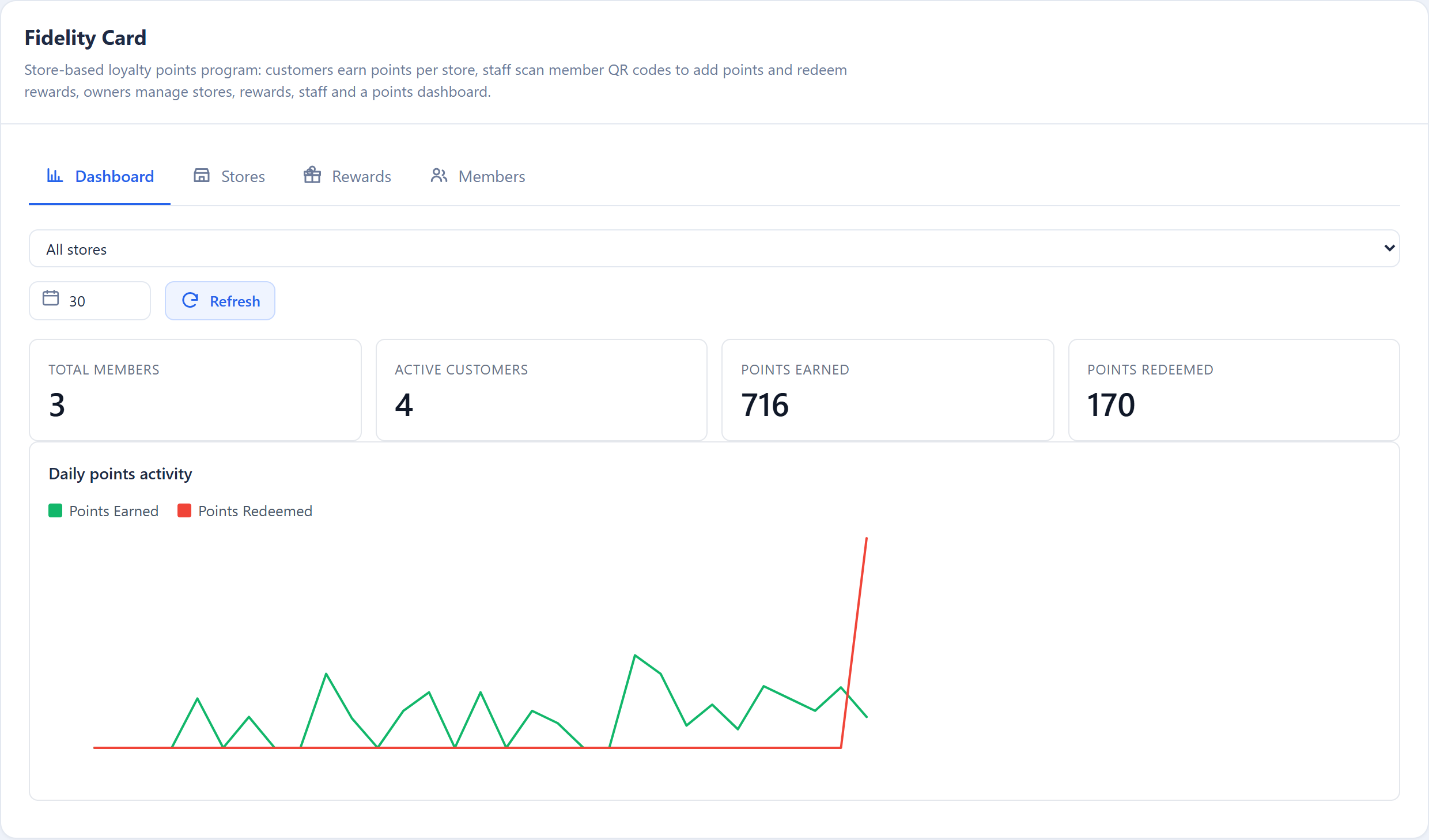
Dashboard
Pick a shop (or All stores) and a number of days, then Refresh.
| Figure | Counts |
|---|---|
| Total Members | Everyone holding a card, staff excluded |
| Active Customers | People with at least one transaction in the period |
| Points Earned | Points given in the period, including your manual grants |
| Points Redeemed | Points spent on rewards in the period |
Below them, Daily points activity draws points earned in green and points redeemed in red, one point per day across the whole period, so a quiet day shows as zero rather than disappearing.
The period runs from 1 to 365 days and starts at 30.
Stores
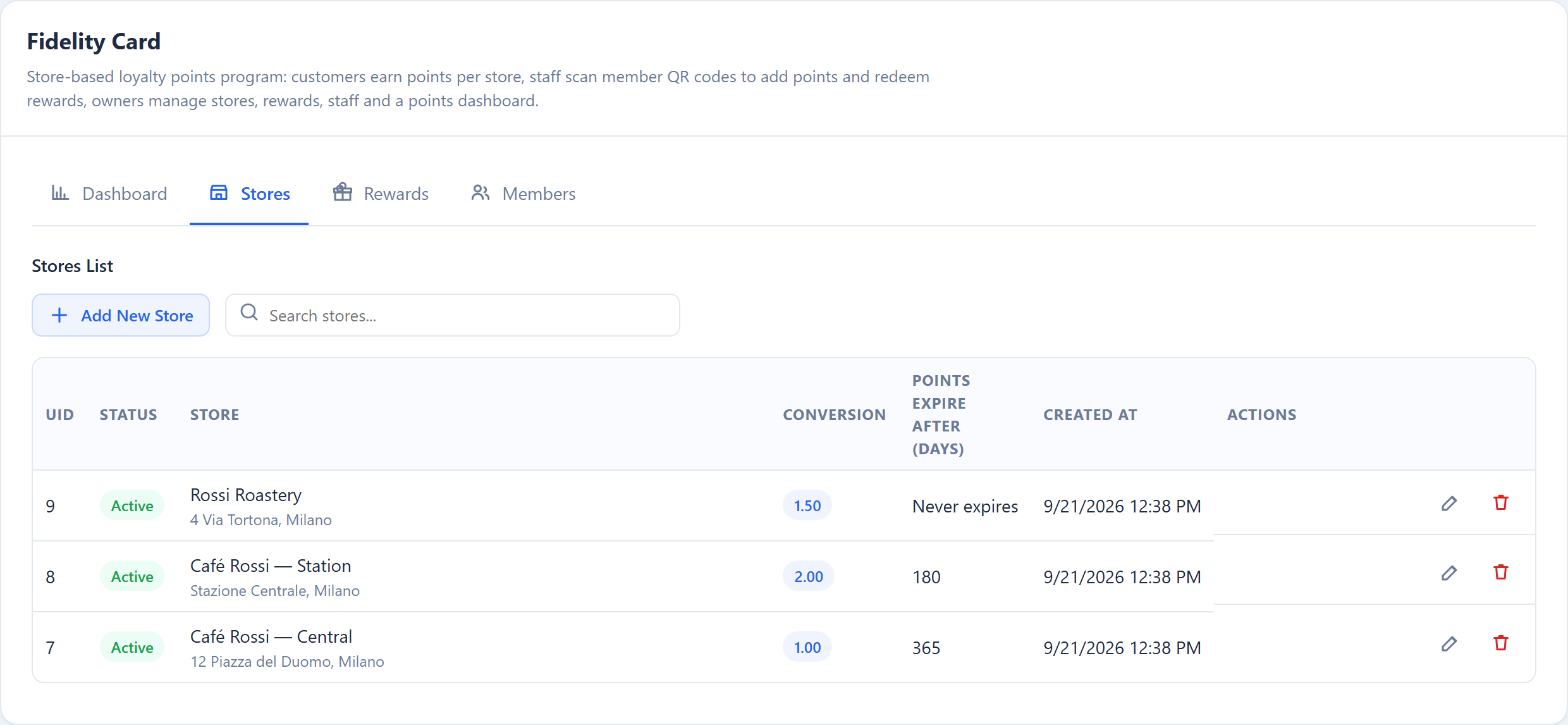
A store is one shop, café or counter where points are earned and spent. Each row shows its name and address, the conversion, when points earned there expire, and whether it is active.
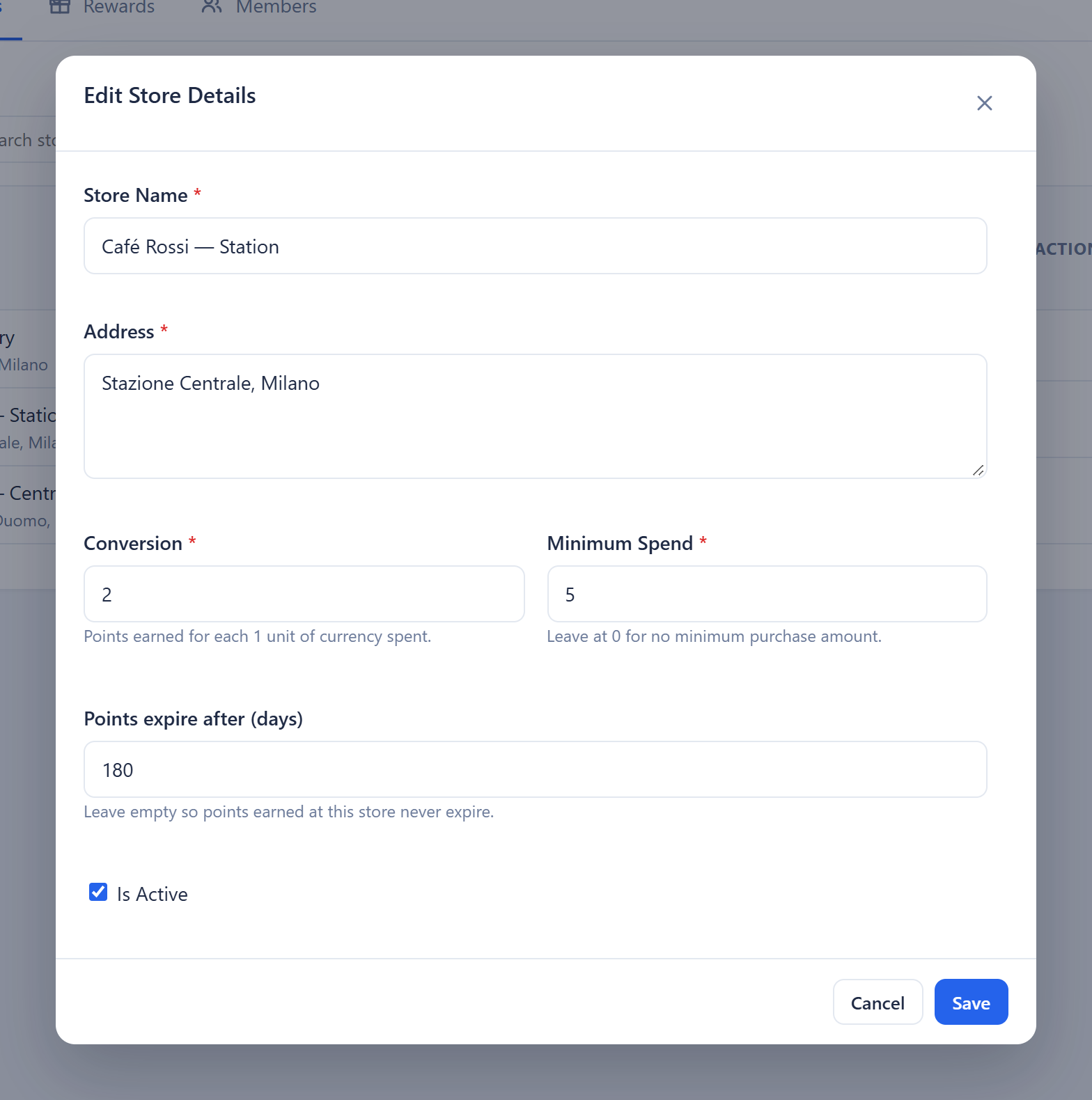
| Field | What it does |
|---|---|
| Store Name | Shown to staff when they pick a shop, and next to every transaction |
| Address | For your own reference |
| Conversion | Points earned for each 1 unit of currency spent. 1 = ten euros give ten points; 2 = ten euros give twenty |
| Minimum Spend | Below this amount, no points are given. Leave 0 for no minimum |
| Points expire after (days) | Points earned here expire after this many days. Leave it empty so they never expire |
| Is Active | Switch a shop off and it disappears from staff's shop list |
Points already earned keep the expiry they were given. Changing a shop's rule only affects points earned after the change.
Rewards
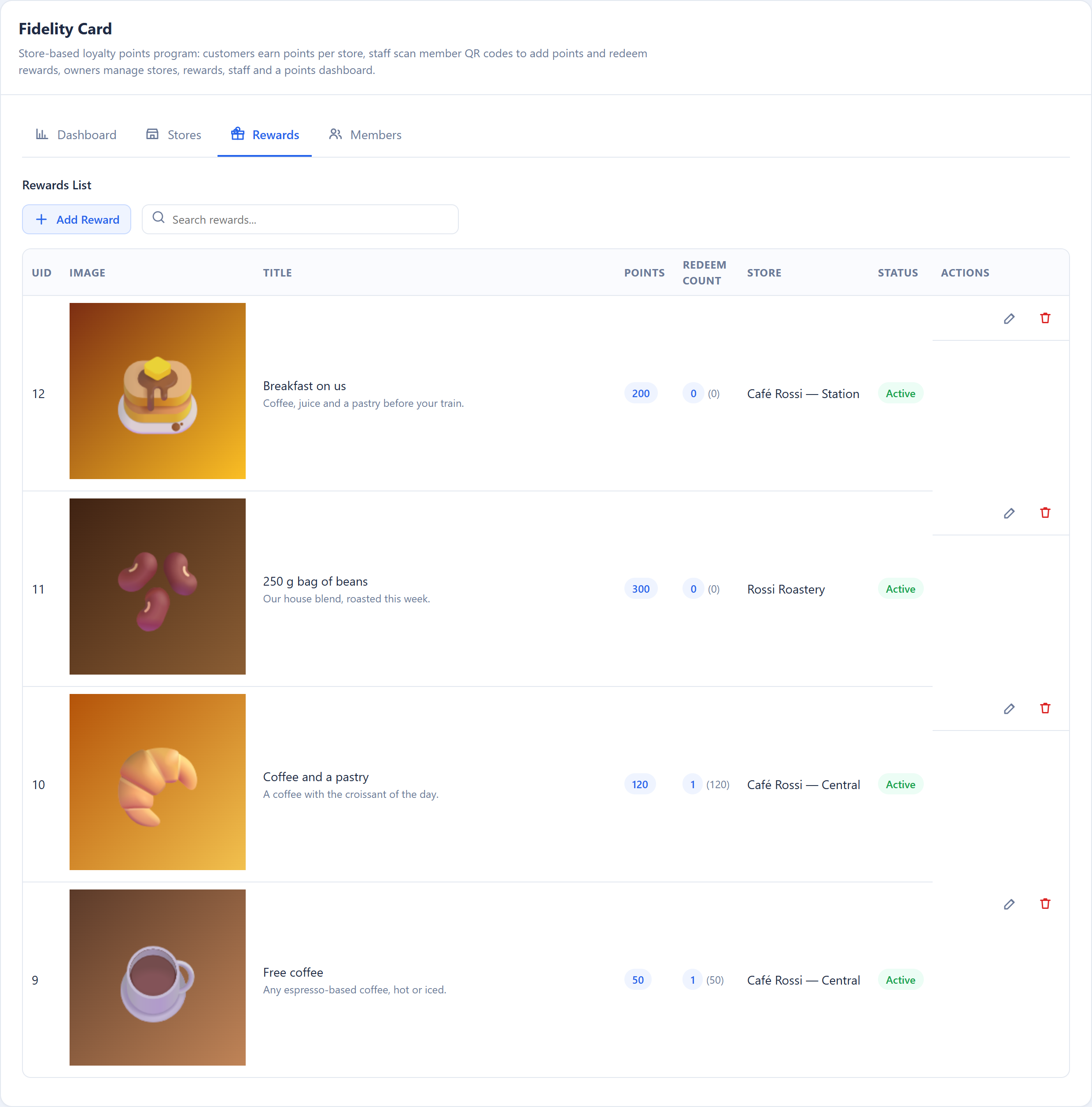
A reward is what a customer can get for their points — a free coffee, a discount, a bag of beans. Each reward belongs to one shop and shows how many times it has been redeemed.
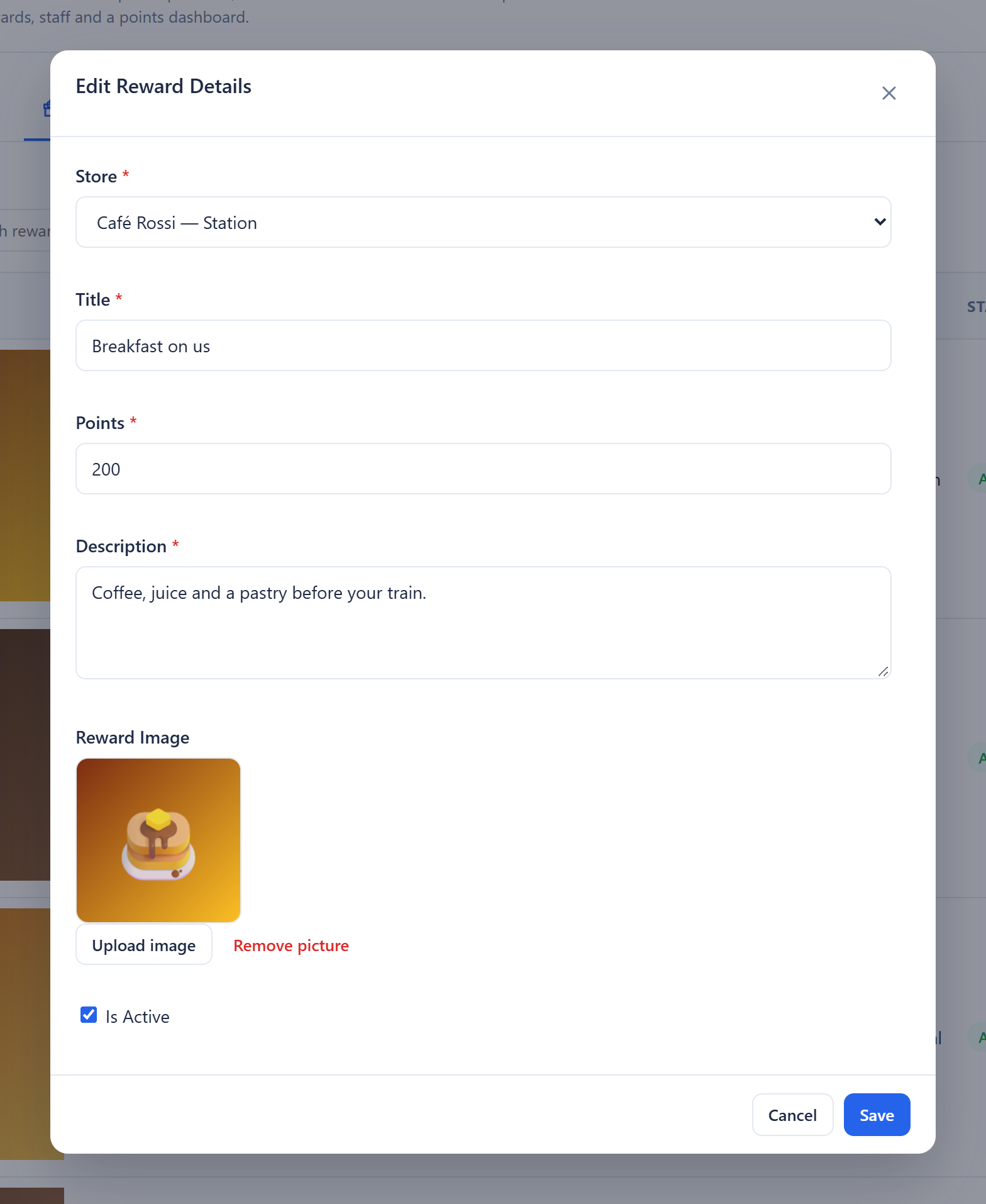
| Field | What it does |
|---|---|
| Store | The shop that hands this reward over |
| Title | What the customer sees |
| Points | What it costs them |
| Description | A line of detail, shown under the title |
| Reward Image | Optional picture, up to 512 KB |
| Is Active | Switch it off to take it out of the app without deleting it |
Members
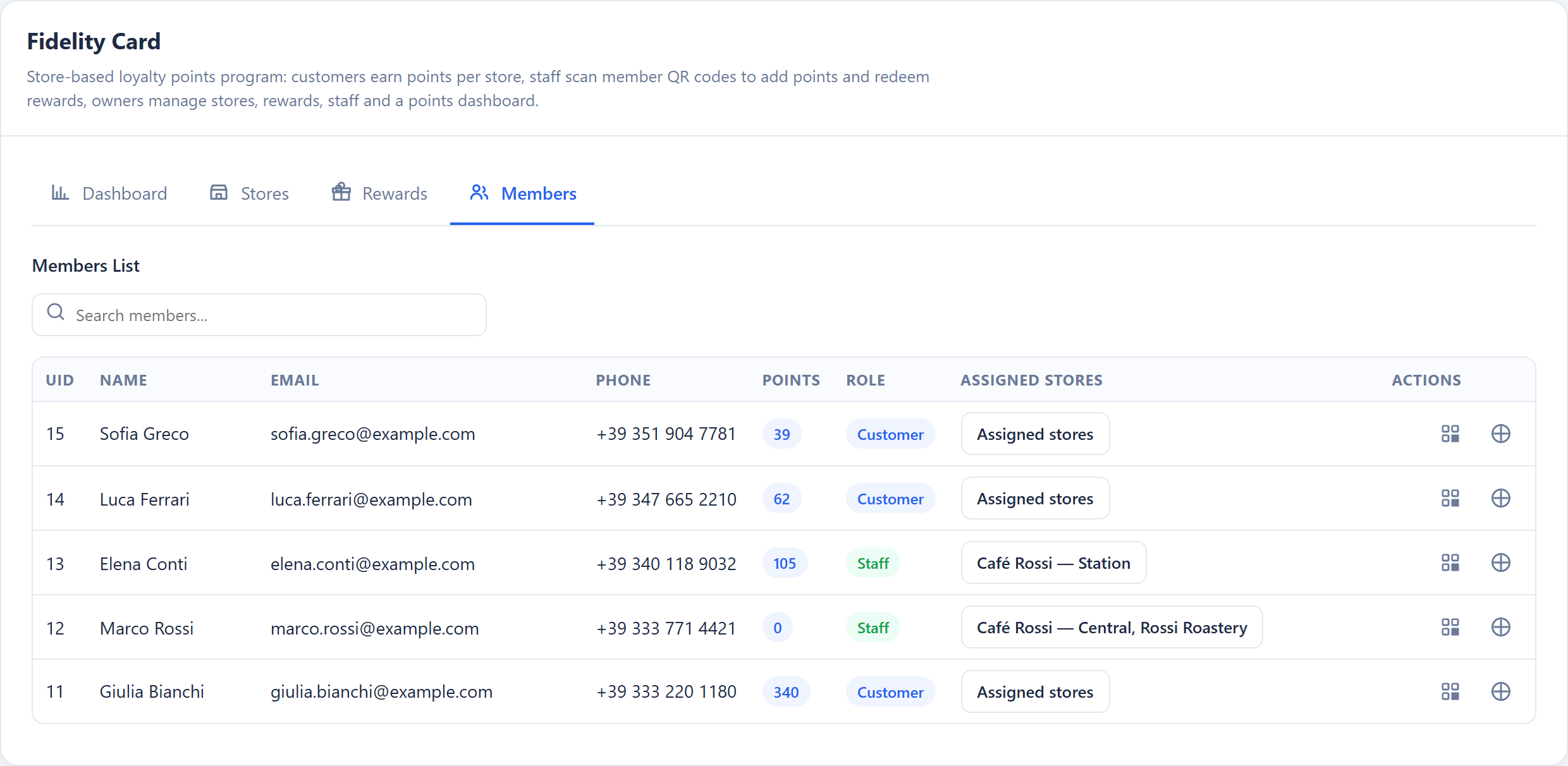
Every app user who opens the Fidelity Card appears here, with their points, their role and the shops they work at. Search by name, email or phone.
Making someone staff. Open Assigned stores on their row and tick one or more shops. As soon as a member has a shop, their role becomes Staff and Staff Mode appears in their app. Untick every shop and they are a customer again.
Their card. The QR button shows the member's QR code and the code underneath it, which you can download and print — useful when someone cannot open the app.
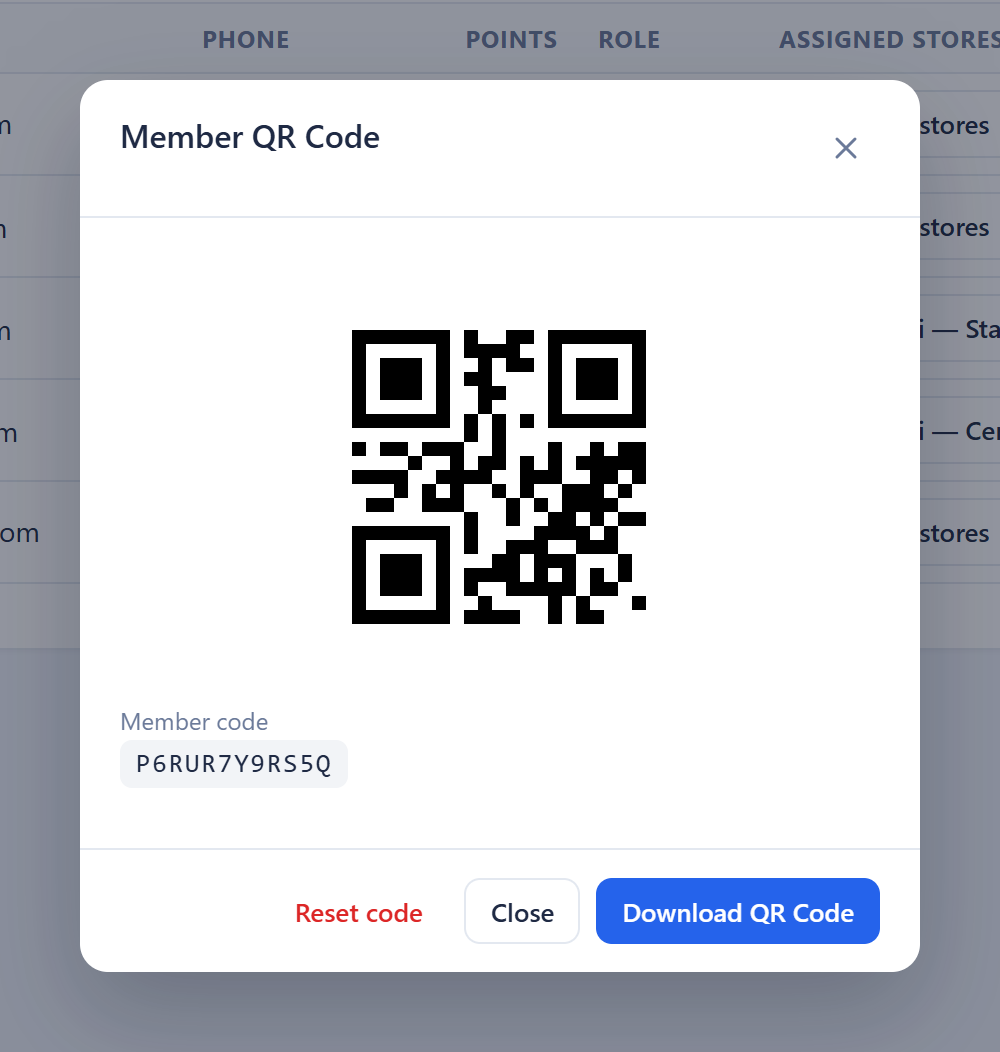
Reset code gives the member a new code; the old QR stops working straight away. Use it if a code was shared or printed by mistake.
Correcting points. The adjust button grants or removes points by hand.
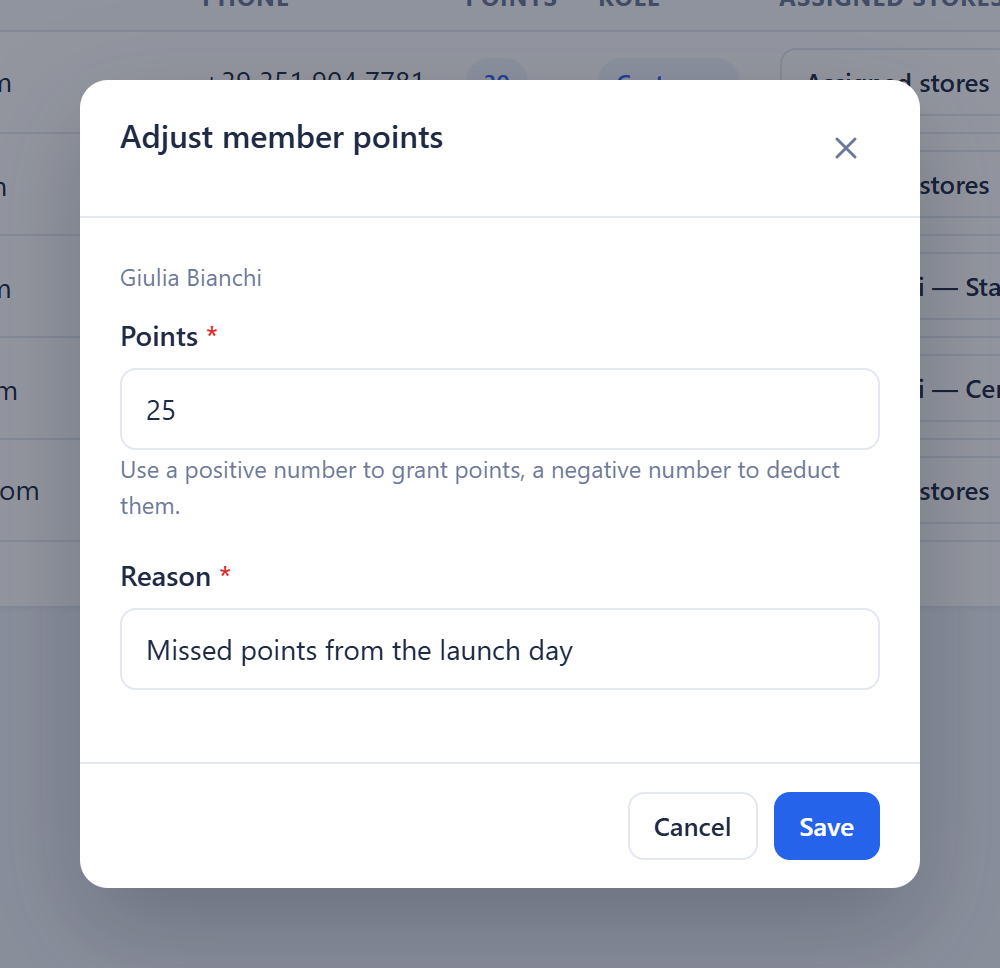
- A positive number grants points, a negative number removes them.
- A deduction never takes a balance below zero.
- The reason is required and stays attached to the correction, so the next person who looks knows why it happened.
- Granted points never expire.
Everyday tasks
| Task | Steps |
|---|---|
| Open a new shop | Stores → Add New Store → name, address, conversion → Save |
| Give double points at one shop | Stores → open it → set Conversion to 2 → Save |
| Stop points expiring at a shop | Stores → open it → clear Points expire after → Save |
| Add a reward | Rewards → Add Reward → pick the shop, title and points → Save |
| Retire a reward | Rewards → open it → switch off Is Active → Save |
| Make someone staff | Members → Assigned stores → tick their shops |
| Fix a wrong balance | Members → adjust → number and reason → Save |
| Replace a leaked card code | Members → QR → Reset code |
In the app #
What people see on their phone.
The customer card
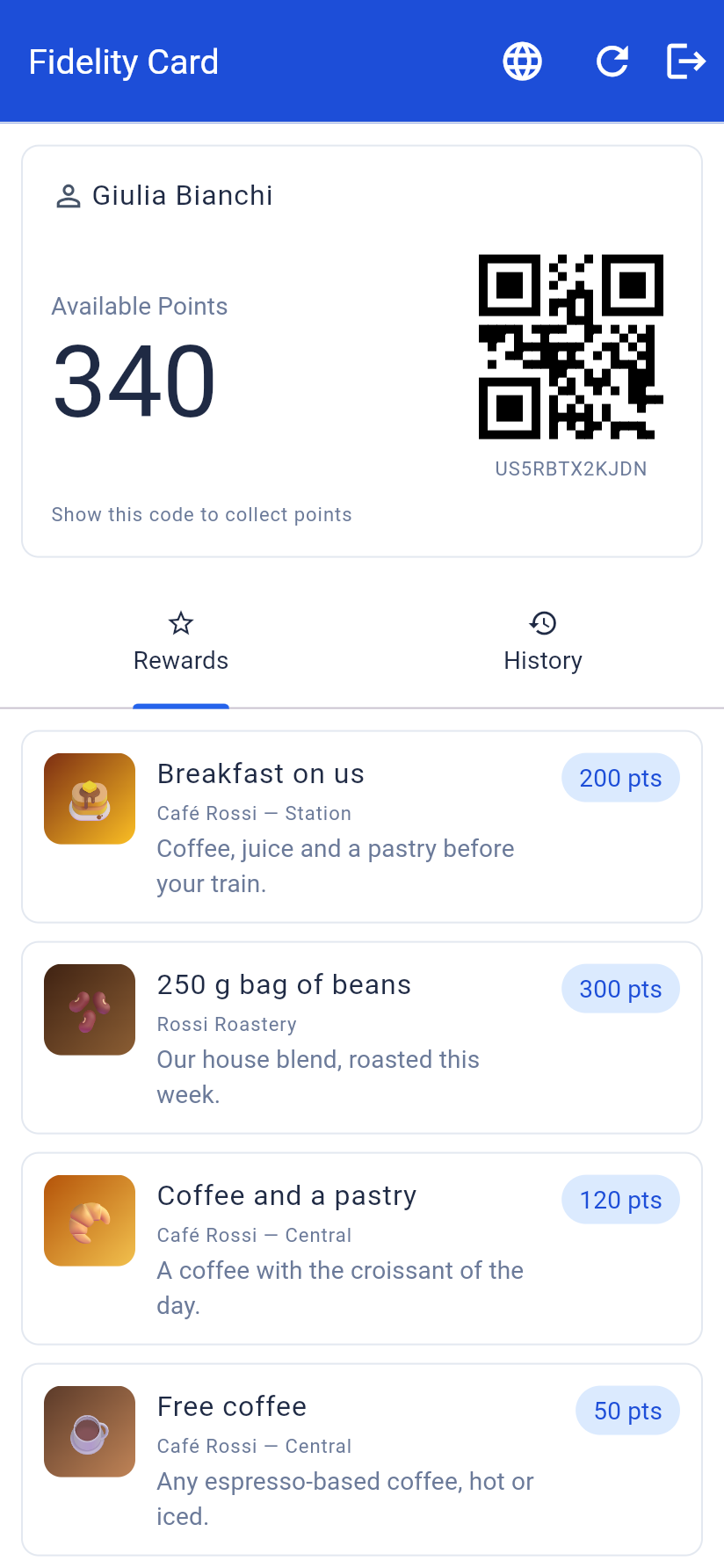
- Their name and Available Points at the top.
- The QR code staff scan, with the member code printed underneath for when scanning will not work.
- Rewards: every reward you offer, with what it costs. A customer sees them all, whichever shop they belong to.
History is the second tab: every entry with its shop, the date it was given, when it expires, and the points in green or red.
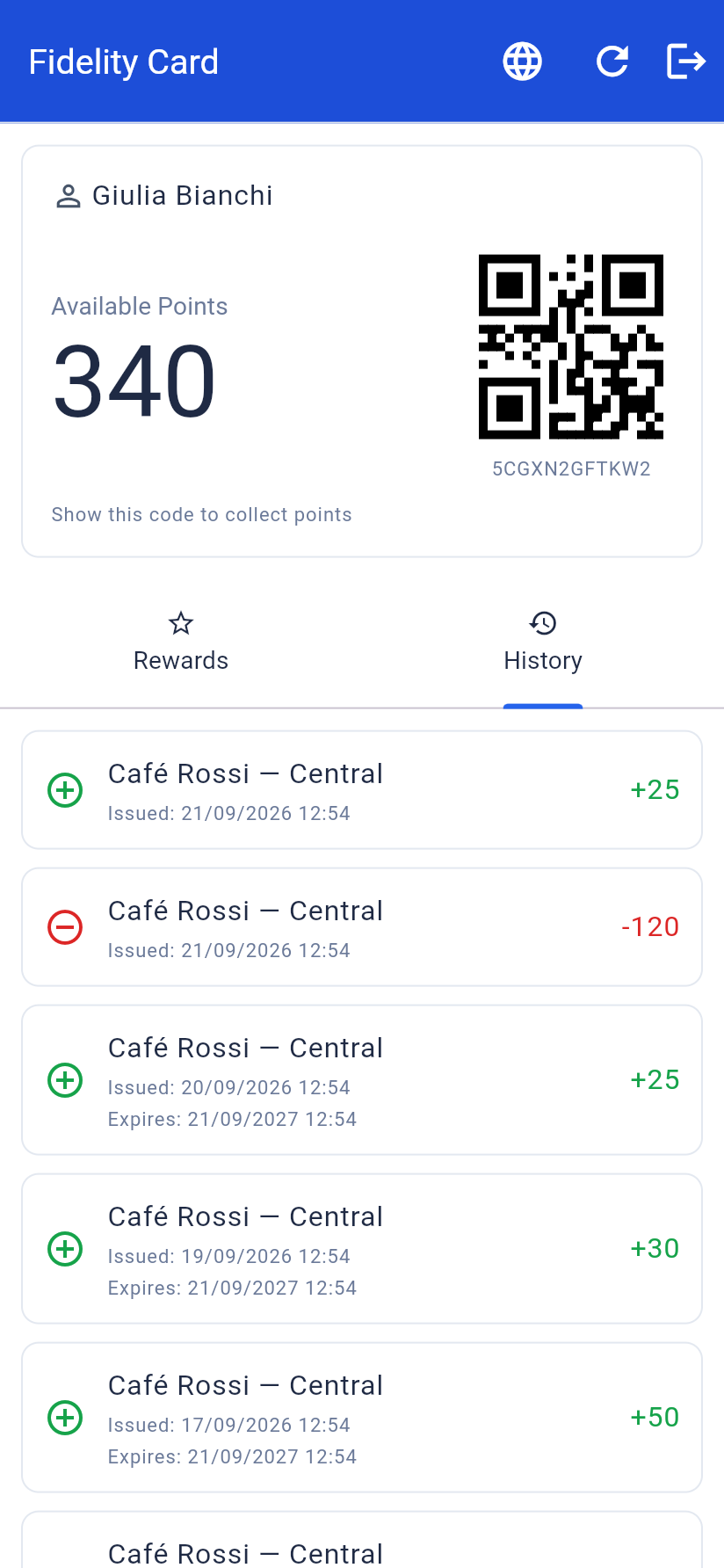
A customer never spends their own points from their phone: a member of staff hands the reward over, which keeps the reward and the points together.
Staff Mode
Staff see a switch at the top of the card. It only appears for people assigned to at least one shop.
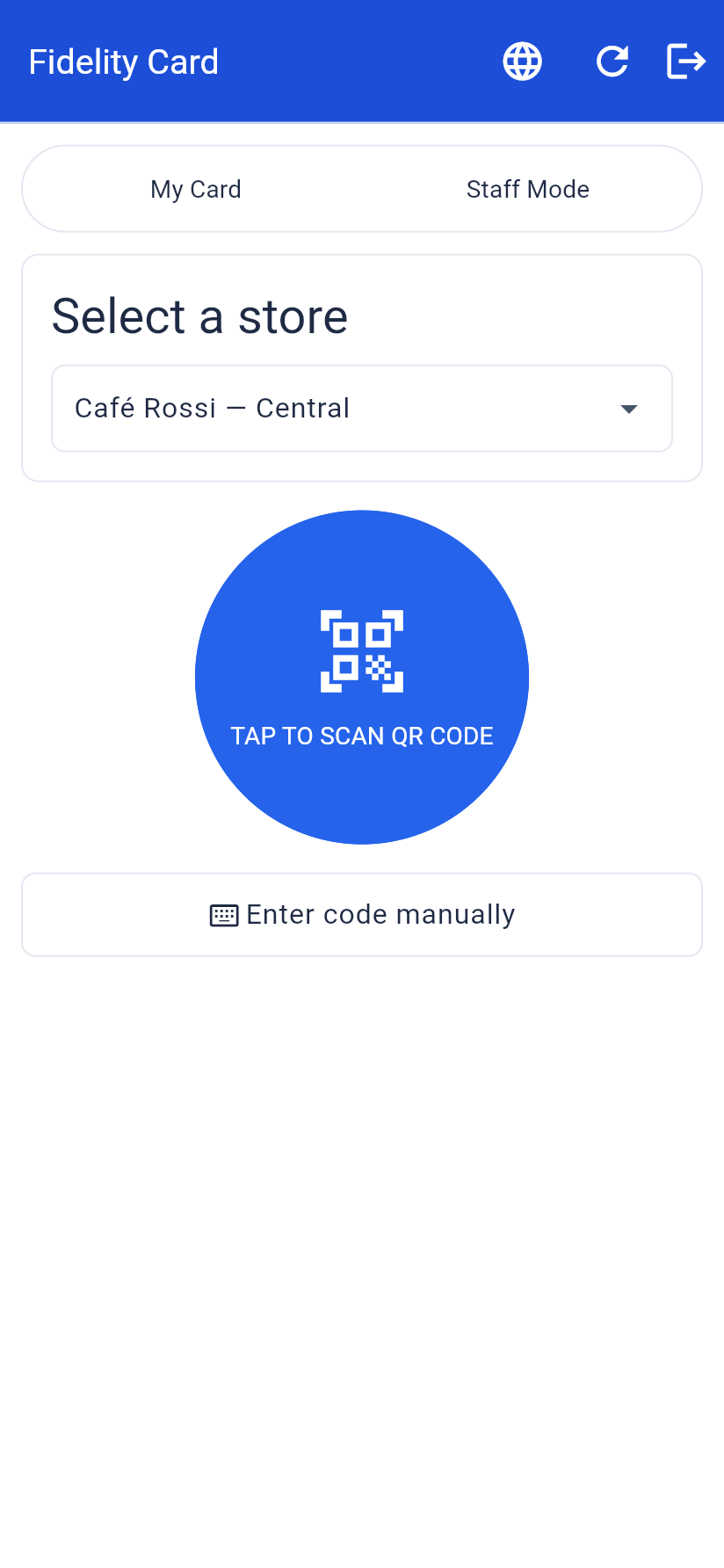
- Pick the shop they are working in. Only their own shops are listed.
- Tap to scan the customer's QR code, or use Enter code manually and type the code from the customer's card.
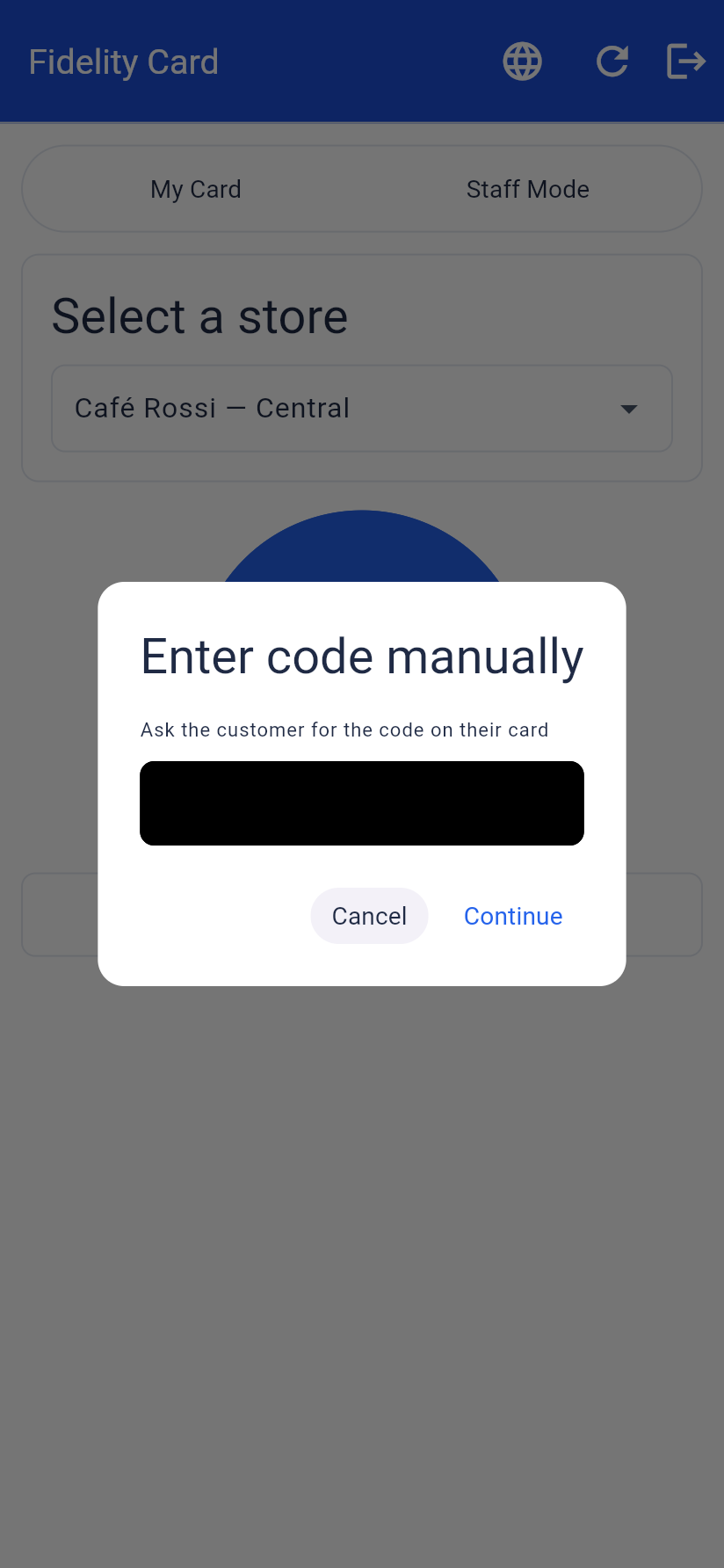
- The customer's name and balance appear, with everything staff can do for them.
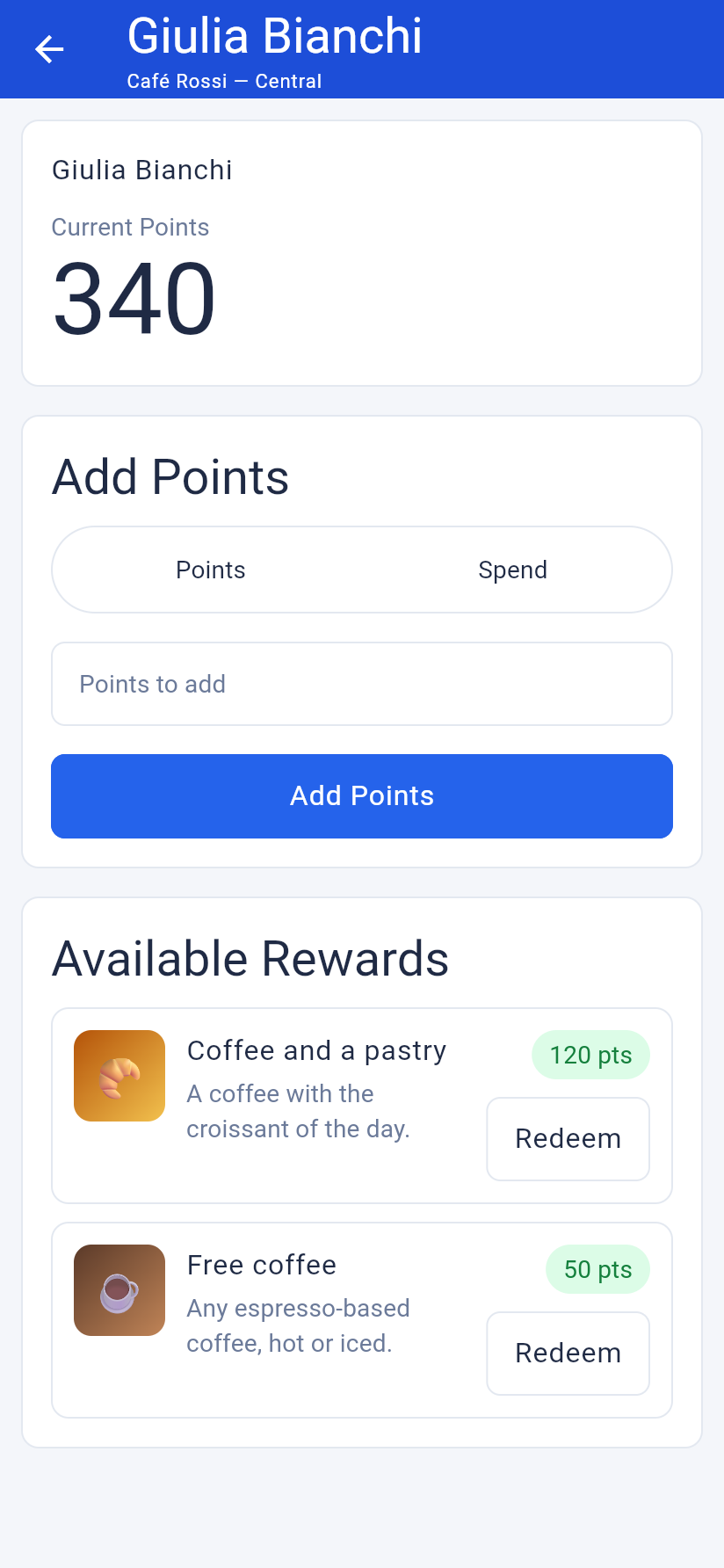
Adding points, two ways:
| Mode | They type | The app adds |
|---|---|---|
| Points | A number of points | Exactly that number |
| Spend | The amount of the bill | The shop's conversion applied to that amount |
In Spend mode the screen shows what the bill is worth before anything is saved.
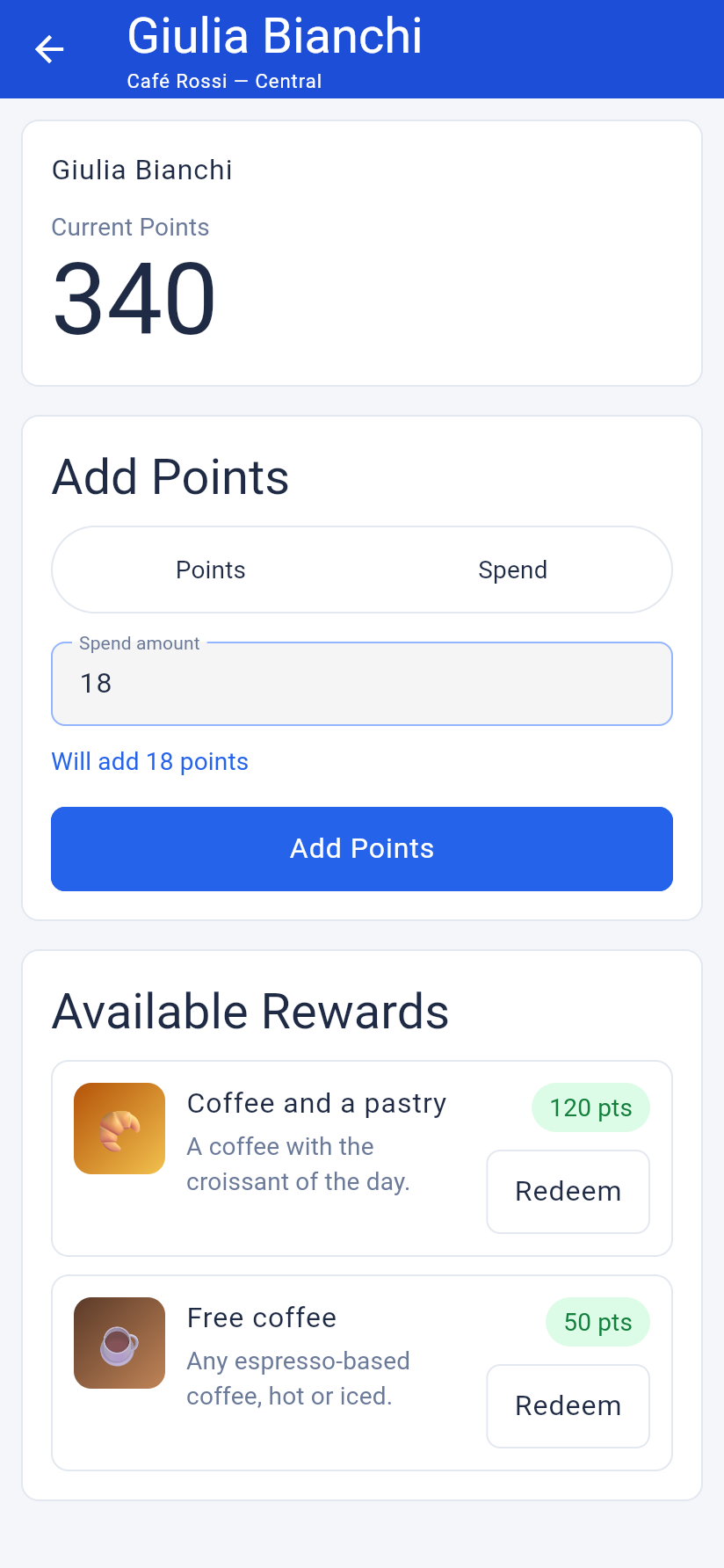
The server works the points out again on its side, so what staff see is a preview and the shop's rule always decides.
Handing over a reward. Under the balance are the rewards of the shop being served; tap Redeem, confirm, and the points come off straight away. Rewards from your other shops are not offered here, because this shop is the one handing the reward over.
Guide for your staff #
Send this section to the people working in your shops. Replace "the app" with your app's name.
You do not need a separate app or a separate password. Sign in to the app as usual and open the Fidelity Card.
Serving a customer
- Switch to Staff Mode at the top.
- Choose the shop you are in. You only see the shops you work at.
- Tap scan and point the camera at the customer's QR code. If it will not scan, tap Enter code manually and type the code from their card.
- You will see their name and how many points they have.
Giving points
- Points — type the number of points directly.
- Spend — type the amount of the bill and the app works out the points for your shop.
Tap add, and the new balance appears straight away.
Giving a reward
Under the balance you see what this customer can afford. Tap the reward, confirm, and hand it over. The points come off immediately.
Common questions
- Nothing happens when I scan.
- Check you picked a shop first — the scanner stays closed until a shop is chosen.
- The code says it is not valid.
- The customer may be using a card from another app, or the code was reset. Ask them to open their card in the app and read the code underneath the QR.
- It will not let me add points to my own card.
- That is on purpose. Ask a colleague.
- The amount gives no points.
- The shop has a minimum spend, or the bill is too small to reach one point.
Questions and fixes #
Setting up
- How do customers join?
- They do not sign up separately. Anyone who opens the Fidelity Card in your app becomes a member with their own code and a balance of zero.
- How do I make someone staff?
- Members tab → Assigned stores on their row → tick the shops they work at. The role changes to Staff immediately and Staff Mode appears in their app.
- Can one person work at several shops?
- Yes. They pick the shop each time they serve someone.
- What does conversion mean exactly?
- It is the points given for one unit of currency. Conversion 1 gives 10 points for a 10 € bill; conversion 0.5 gives 5; conversion 2 gives 20. Fractions are rounded down.
Points
- When do points expire?
- After the number of days set on the shop that gave them, or never if that field is empty. Points you grant by hand never expire.
- If I change a shop's expiry, what happens to old points?
- Nothing. Points keep the expiry they were given; the new rule applies to points earned afterwards.
- Which points are spent first?
- The oldest ones. That way a customer never loses points that could have been used.
- Can a balance go negative?
- No. A redemption that costs more than the balance is refused, and a manual deduction stops at zero.
- A customer says points are missing.
- Open Members, check their balance and their history. If something was missed, use the adjust button, type the number and a short reason.
Rewards
- Can a reward belong to more than one shop?
- No — a reward belongs to one shop, which is the shop that hands it over. Create the same reward for another shop if you need it there too.
- How do I retire a reward without losing its history?
- Switch off Is Active. It disappears from the app and its past redemptions stay in the figures.
- Can a customer redeem from their own phone?
- No. Staff hand the reward over, so the points come off at the moment the customer receives it.
Cards and codes
- A customer cannot open the app.
- Open their row in Members, show the QR and download it; they can keep a printed copy.
- A code was shared or printed by mistake.
- Members → QR → Reset code. The old code stops working immediately.
- Can staff add points to themselves?
- No, and it cannot be switched on.
Your data
- What happens to points when I delete a shop?
- The transactions stay in the history and the figures; only the shop itself is removed from the lists.
- Does the module send emails?
- No. Everything happens in the app and on the MAB side.
- Is anything cleaned up automatically?
- Yes — once a day the module closes out points that have passed their expiry date. Balances already ignore expired points, so nobody sees a change; it only keeps the records tidy.