
A guide to places inside your app: restaurants, shops, hotels, anything with an address. Each place gets its own page with photos, text, videos, buttons, files and a location on the map. The people who run those places can update their own page from the app, and you decide whether their changes go live at once or wait for your approval.
The module's README.md lists what changed in each version.
Overview #
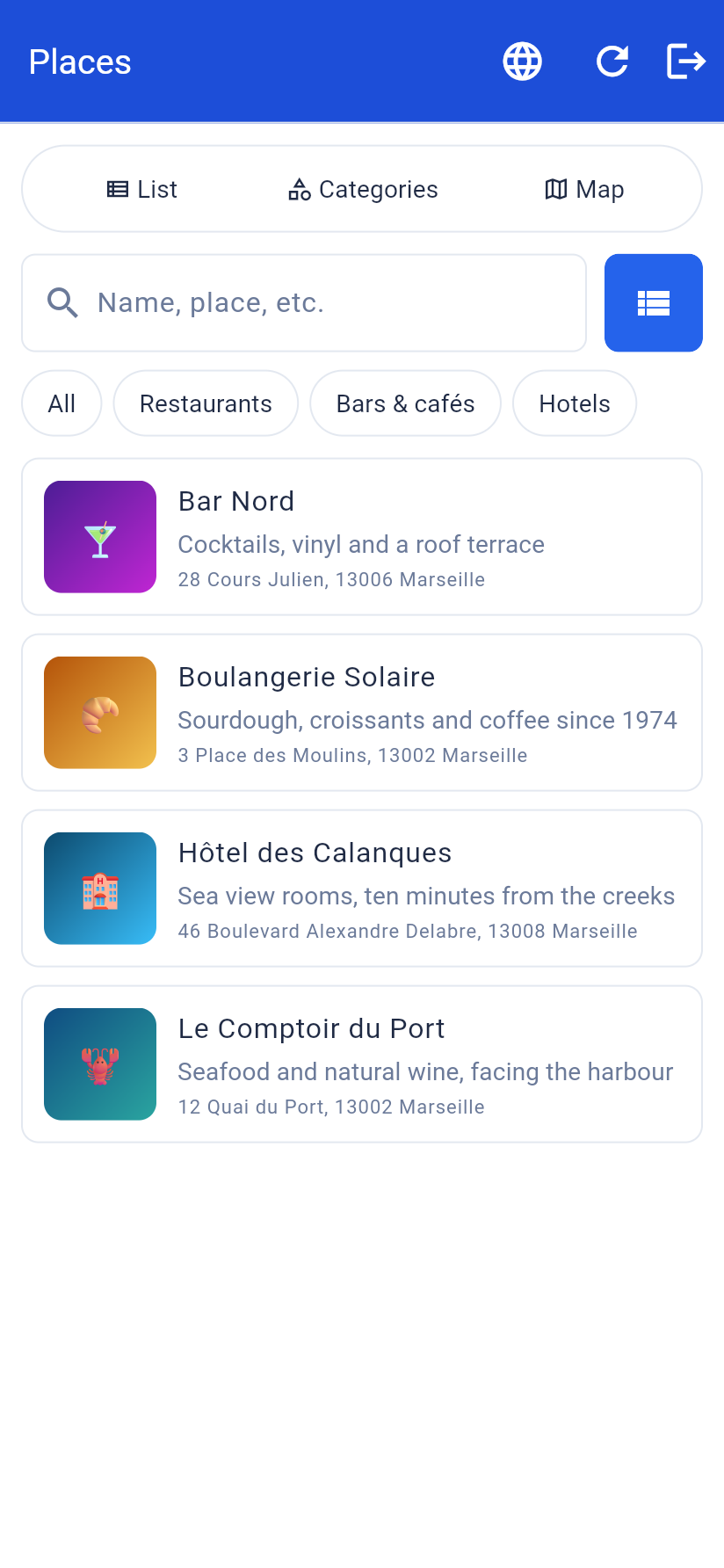
Who does what
| Role | Where | Can |
|---|---|---|
| You, the app owner | MAB side | Add venues and categories, decide who manages which venue, review changes, write the notification emails, set how the module looks and behaves |
| Venue owner | In your app, signed in | Edit their own venue: text, photos, opening details, address, buttons, files — then publish or send for approval |
| Visitor | In your app | Browse the list, filter by category, search, see the map, open a venue page, call, visit the website, get directions, share |
| Signed-in visitor | In your app | Keep private notes on a venue, visible only to them |
What visitors get
- List with search and category filter, as a list or a grid, sorted by distance, name or newest first.
- Categories screen to browse by type.
- Map with a marker per venue; tap a marker to open the place.
- Venue page built from content blocks: text, photo galleries, sliders, a cover image, videos, buttons (call, email, link), files (menu, price list) and extra addresses for a second branch.
- Actions: call, open the website, get directions, share, open a file.
- Private notes, if you enable them.
What venue owners get
- My venues in the app, listing the venues they manage.
- A full editor: title, subtitle, search tags, categories, photos, address with coordinates, and the same content blocks you use on the MAB side.
- Send for approval or Publish directly, depending on their rights.
- Request history, with your note when something is rejected, and the option to withdraw a pending request.
What you get
- Full control of every venue from the MAB side.
- A moderation queue showing exactly what changed, field by field and block by block, before you approve.
- Email notifications you can rewrite, with an optional push to the owner, and a log of every message.
- Settings for the opening screen, layout, sorting, distance unit, map, and what owners are allowed to do.
Good to know before you start
- Maps and address lookup use Google Maps. Add a
google_mapkey in the application's API key settings. Without a key the map still works using OpenStreetMap, but Find coordinates (turning an address into map coordinates) does not. - Distance sorting needs the visitor's location. Without it the list falls back to sorting by name.
- Venue owners must have an account in your app. You link a venue to an existing app user — no separate password, no separate login.
- One venue can have several owners, and one person can manage several venues.
- The module is available in English and Italian.
MAB side guide #
Everything here happens in the Modules screen, after you add Placebook to an application.
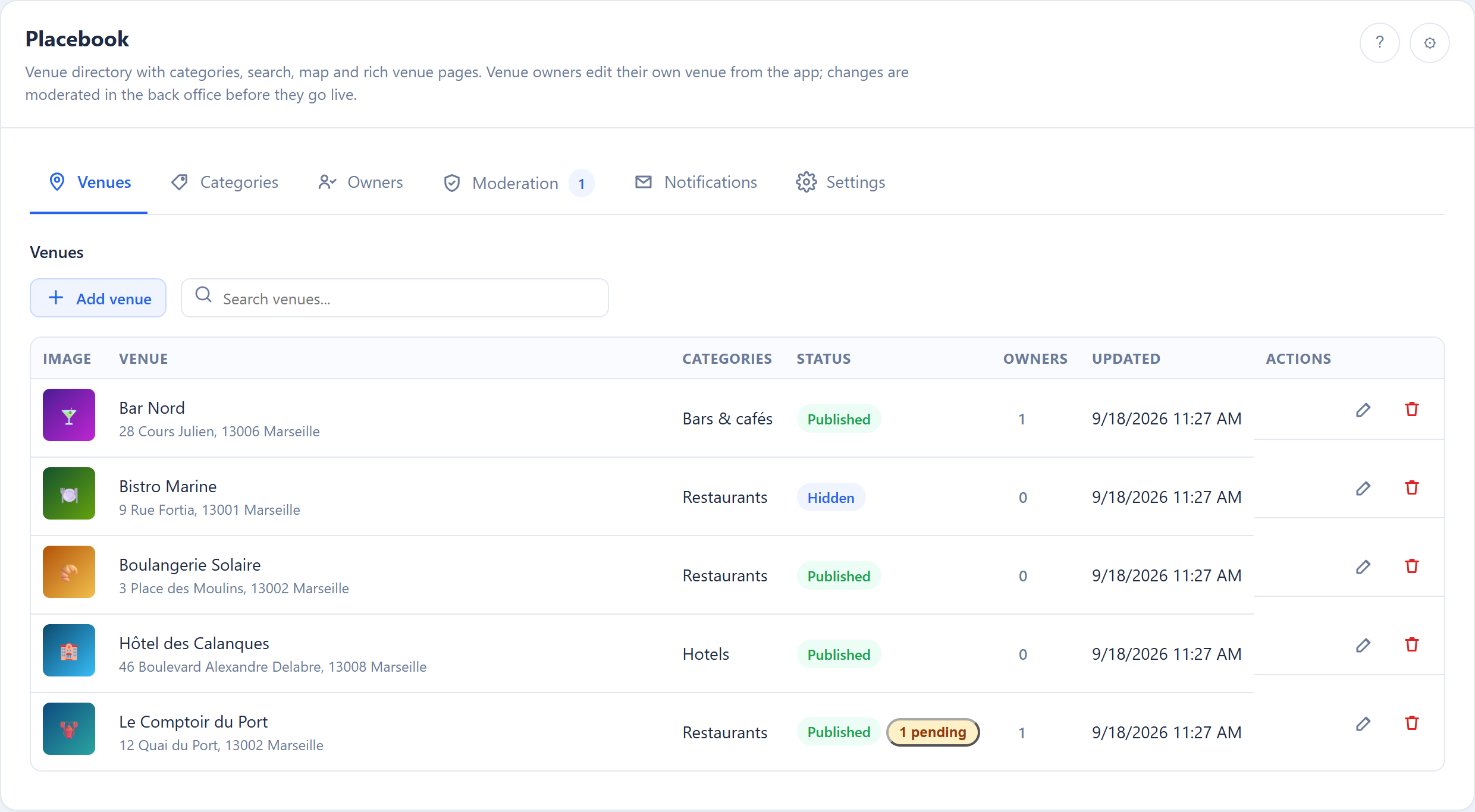
The module has six tabs: Venues, Categories, Owners, Moderation, Notifications, Settings. A number on the Moderation tab means owner requests are waiting for you.
This guide, inside the module
You do not need this file to read the documentation. On the MAB side the module has a Documentation button at the right end of the tab bar. It opens the whole guide — every section, every picture — in a popup, without leaving the page.
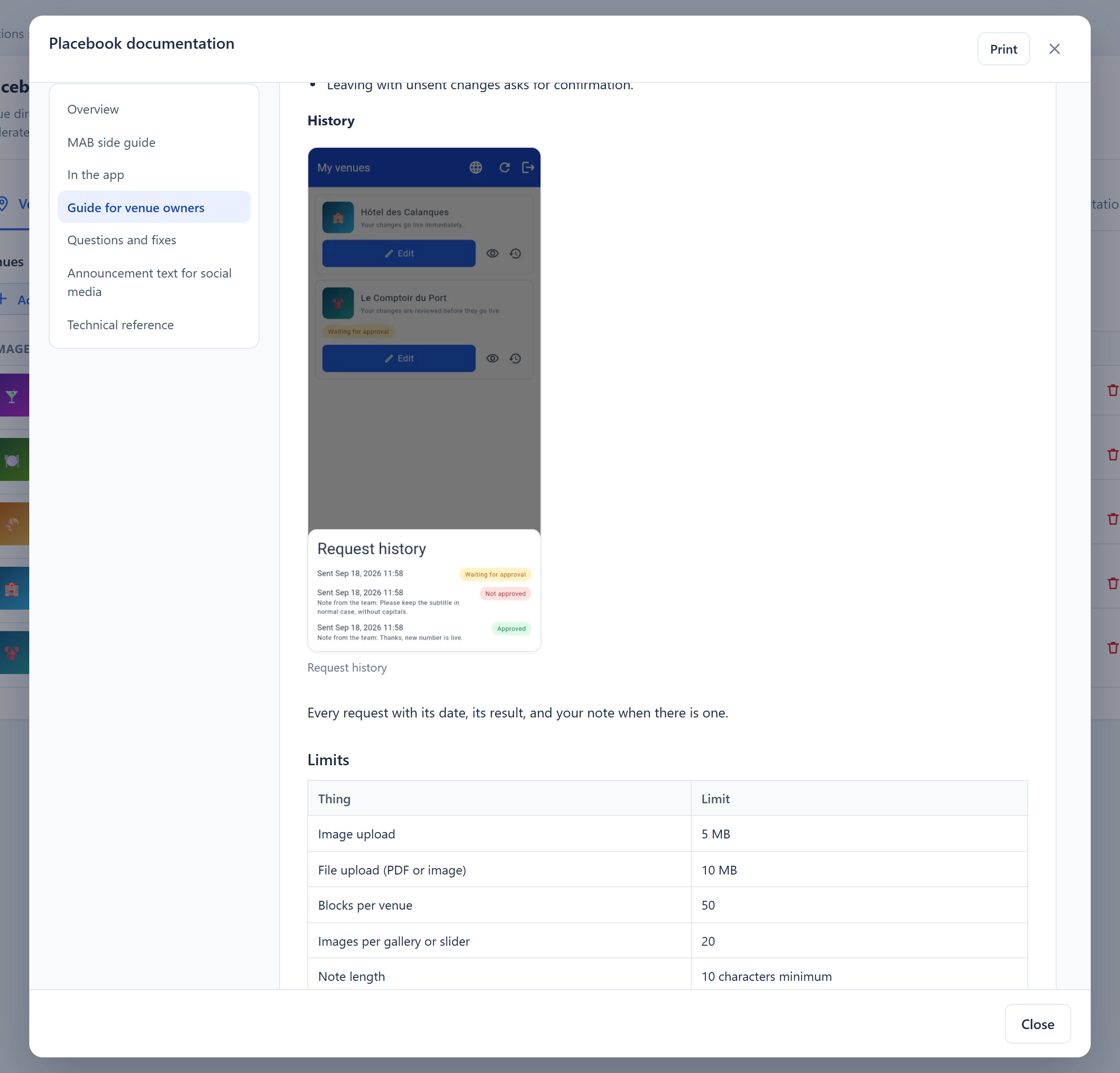
- The list on the left jumps to a section.
- Print opens a printable copy, pictures included, so you can save it as a PDF or hand it to someone.
- The popup follows the language of the MAB side, and falls back to English when a translation of the documentation is not shipped.
Venues
The list shows every venue with its image, categories, whether it is published, how many owners it has, and its coordinates.
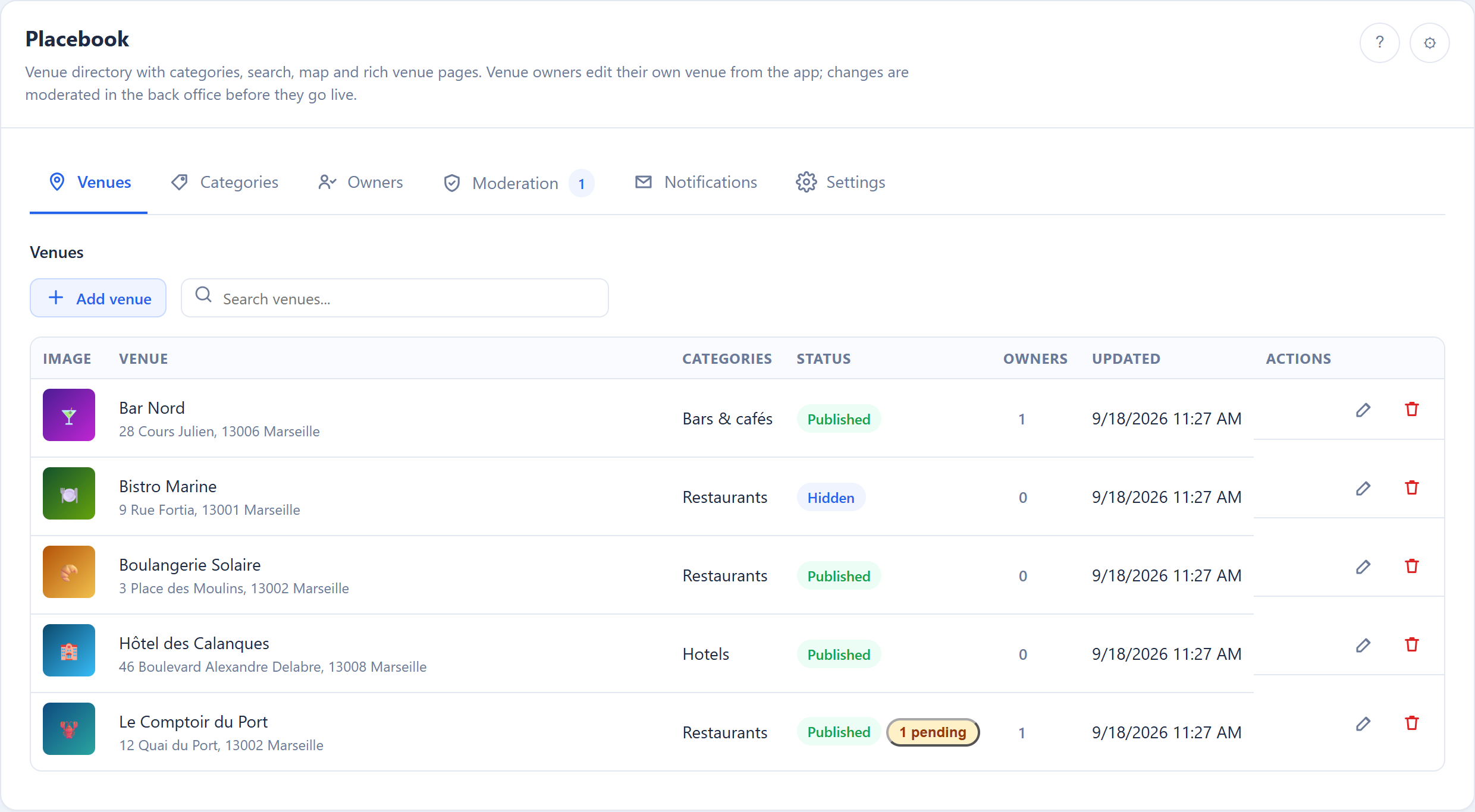
- Add venue opens the editor.
- The search box looks in titles, subtitles and tags.
- The pencil opens a venue; the bin deletes it (content, owners, notes and change requests go with it).
- No coordinates: not shown on the map warns you when an address has never been located.
The venue editor
General
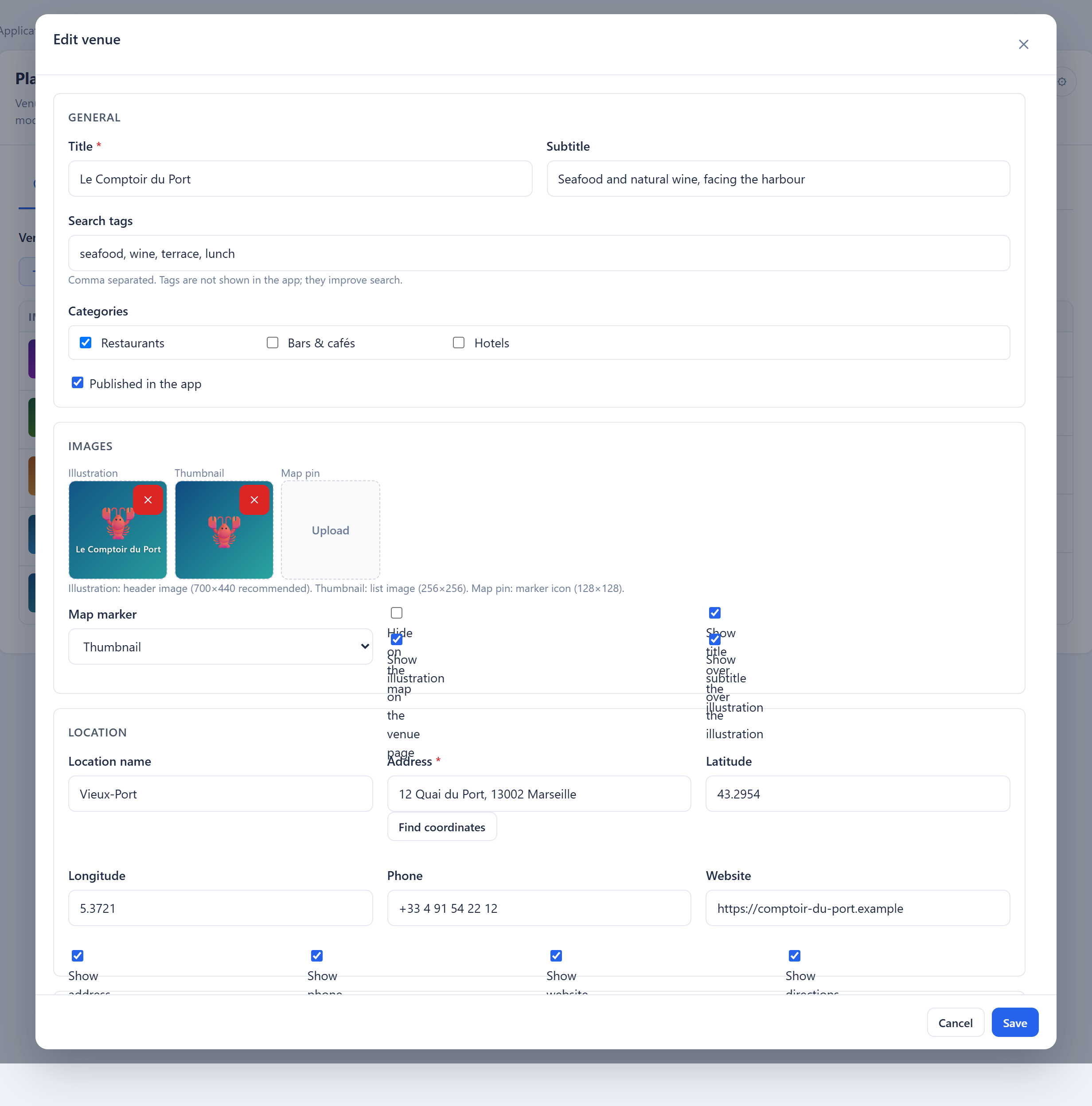
| Field | Notes |
|---|---|
| Title | Required |
| Subtitle | One line under the title |
| Search tags | Comma separated. Not shown in the app; they only improve search |
| Categories | Tick any number |
| Published in the app | Off keeps the venue hidden from visitors; its owners can still preview it |
Images
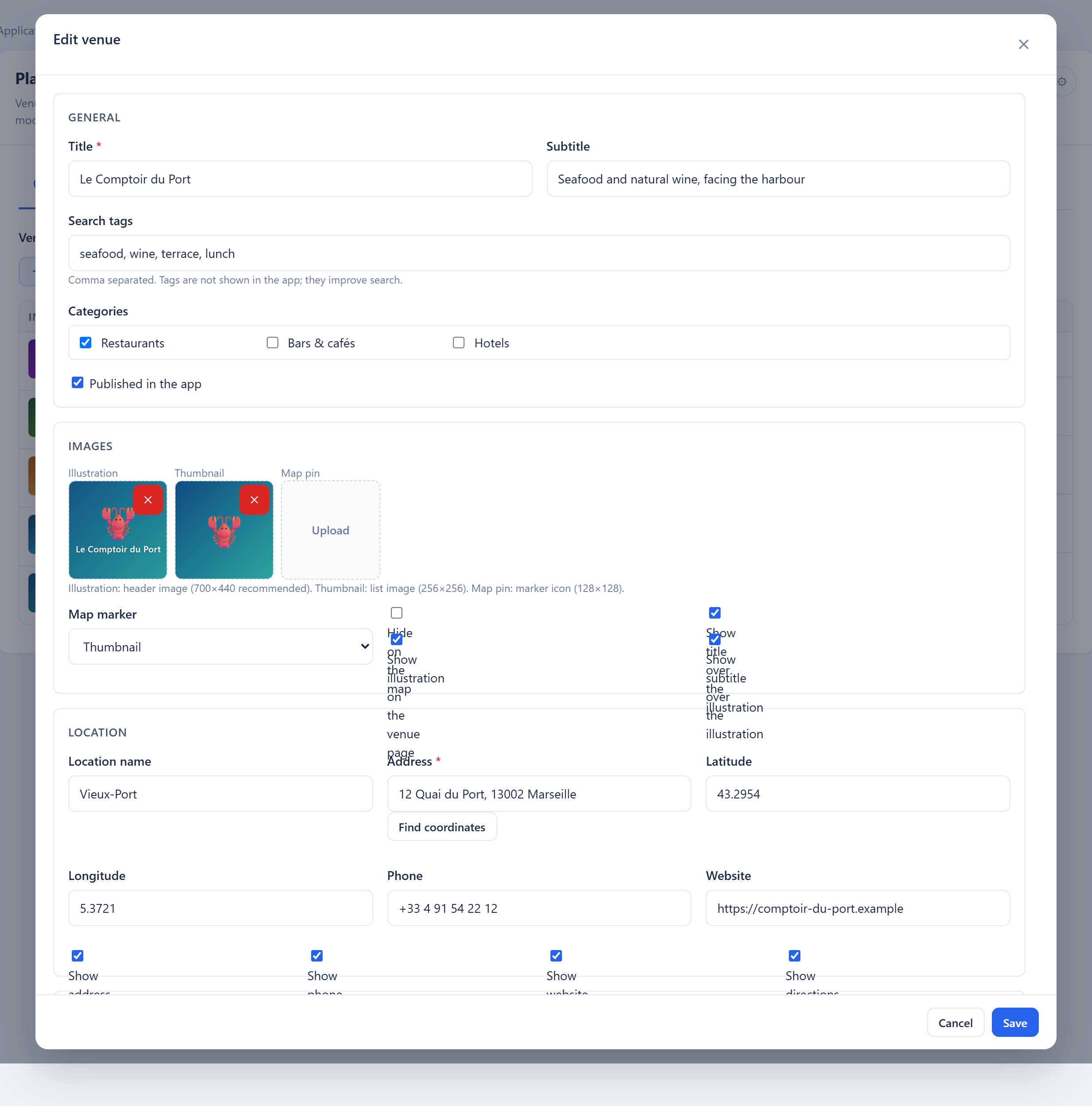
| Image | Used for | Recommended |
|---|---|---|
| Illustration | The header of the venue page | 700 × 440 |
| Thumbnail | The picture in the list | 256 × 256 |
| Map pin | The marker on the map | 128 × 128 |
Pick images from the media library or upload them from your computer. Below them you choose the map marker (pin image, thumbnail, illustration or the default marker), whether to hide the venue on the map, and whether to show the illustration, the title and the subtitle on the page.
Location
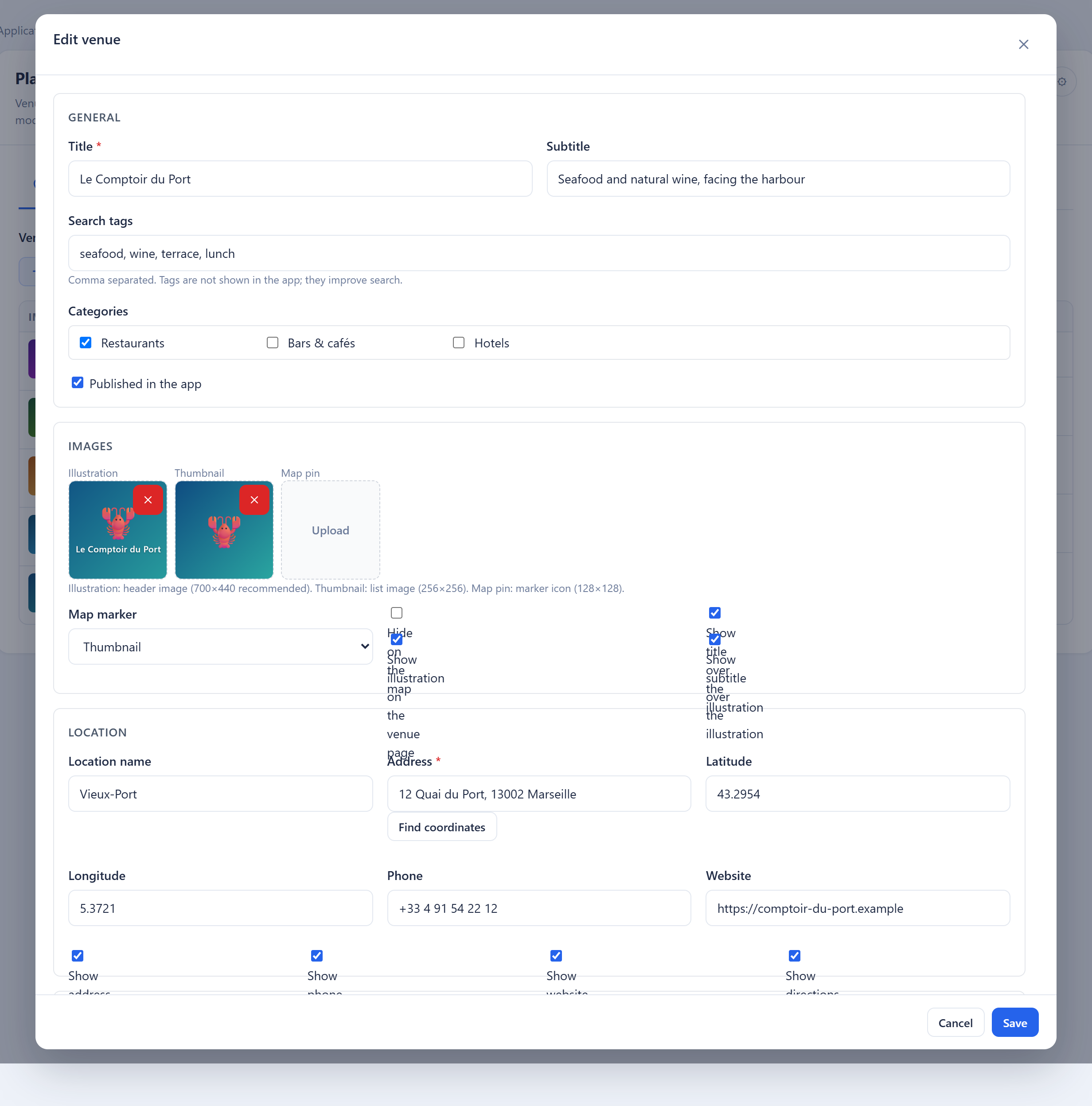
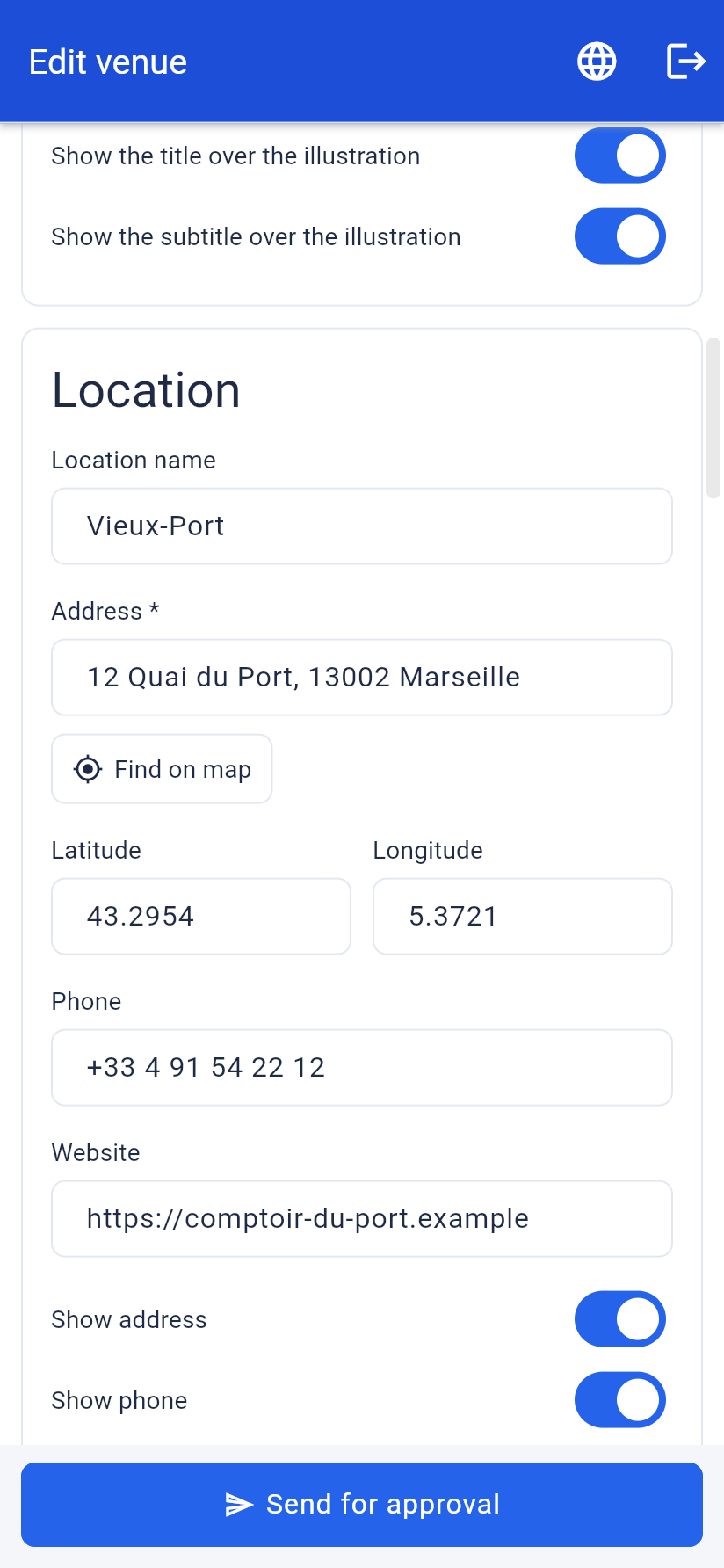
Fill in the address and press Find coordinates to place the venue on the map (needs the Google Maps key). Phone and website become buttons on the venue page; each one has a switch if you would rather hide it.
Content blocks
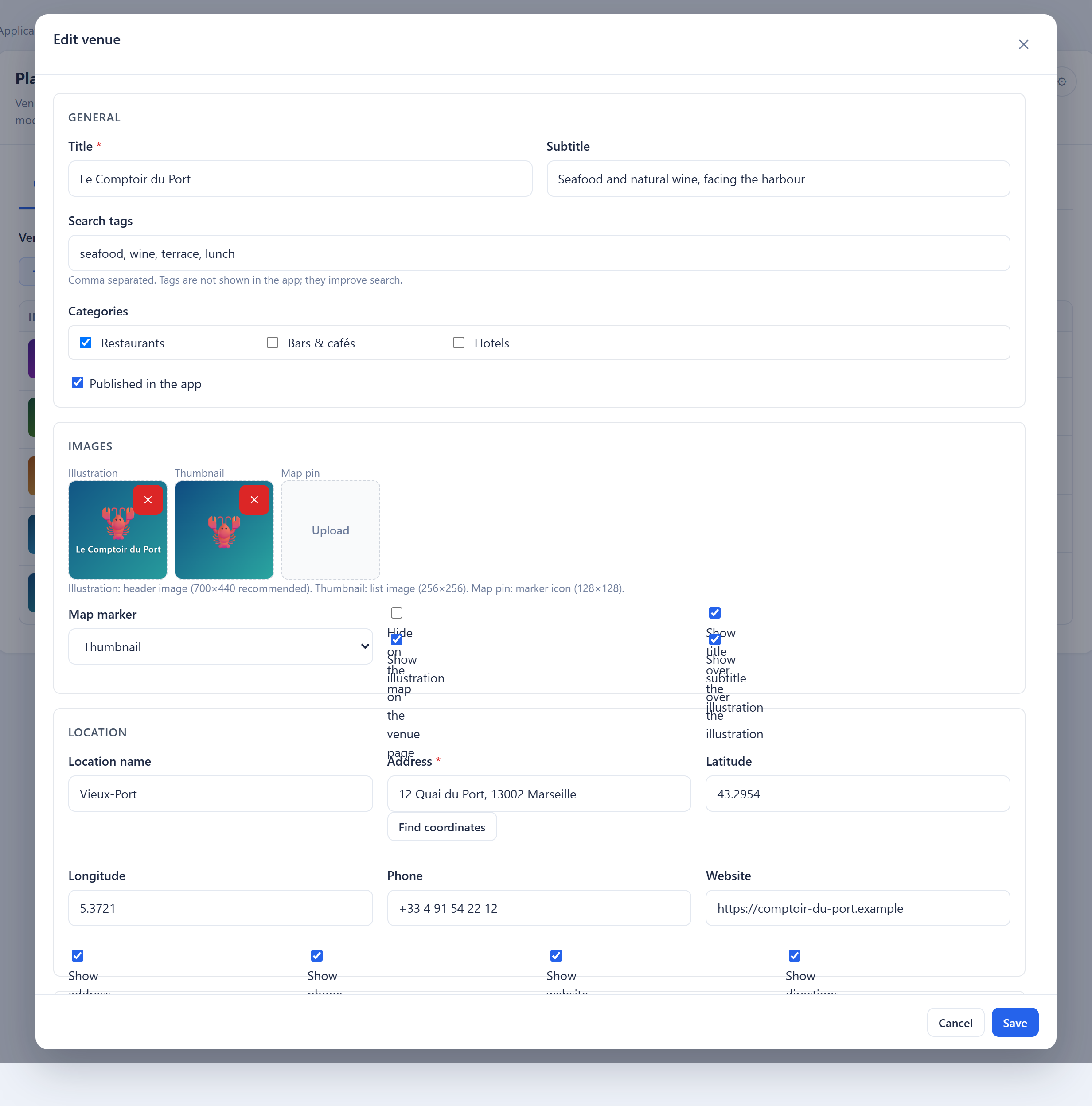
Add as many blocks as you like, in any order; the arrows move them.
| Block | Shows |
|---|---|
| Text | Formatted text, with an optional image before or after it |
| Image gallery | Several photos in a grid |
| Image slider | Several photos, swiped one by one |
| Cover image | One wide picture |
| Video | A YouTube or Vimeo link, or a video file |
| Button | Opens a link, calls a number, or writes an email |
| File | A PDF or image the visitor can open, e.g. a menu |
| HTML | Your own HTML, shown in a web view |
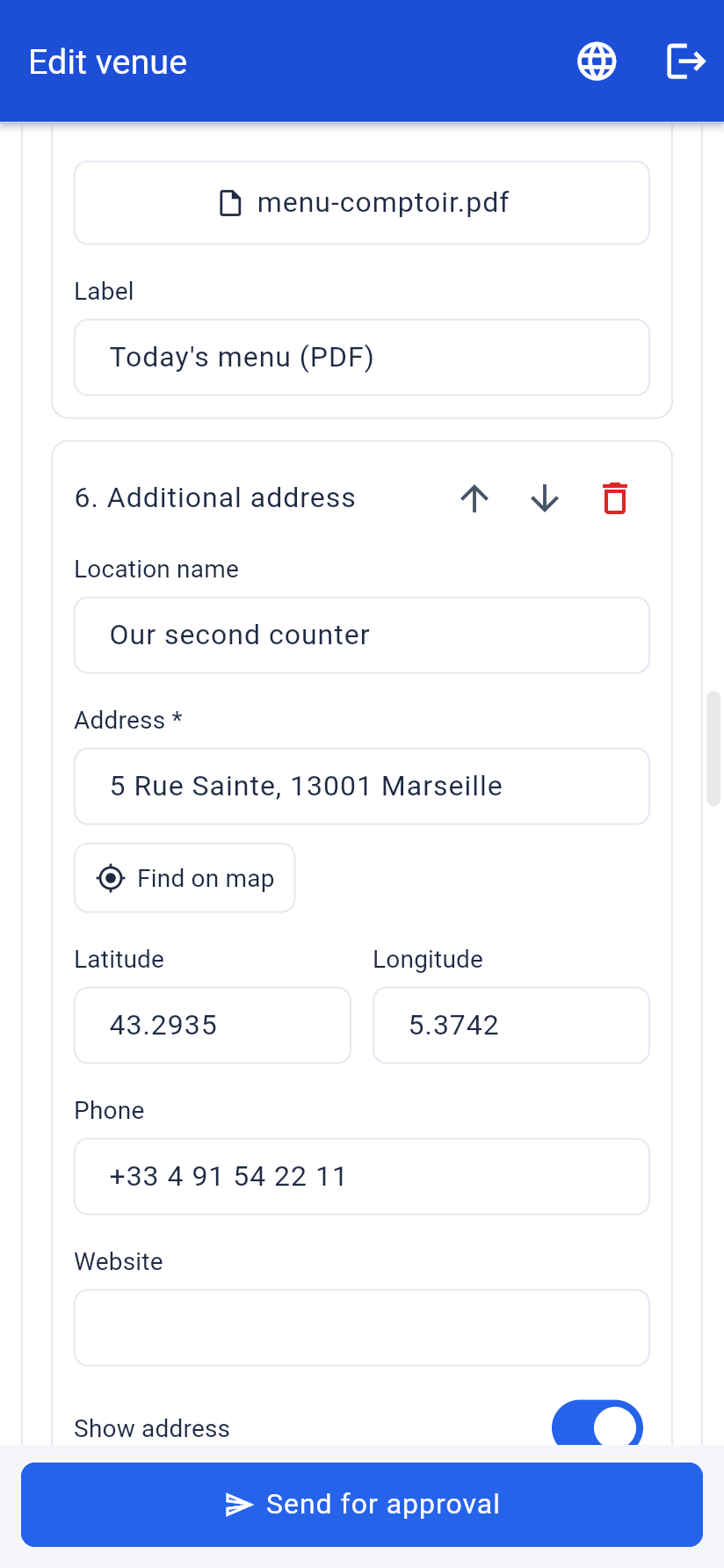
| Additional address | A second address, with its own map and directions button |
Scripts and event handlers are removed from text and HTML for safety.
Categories
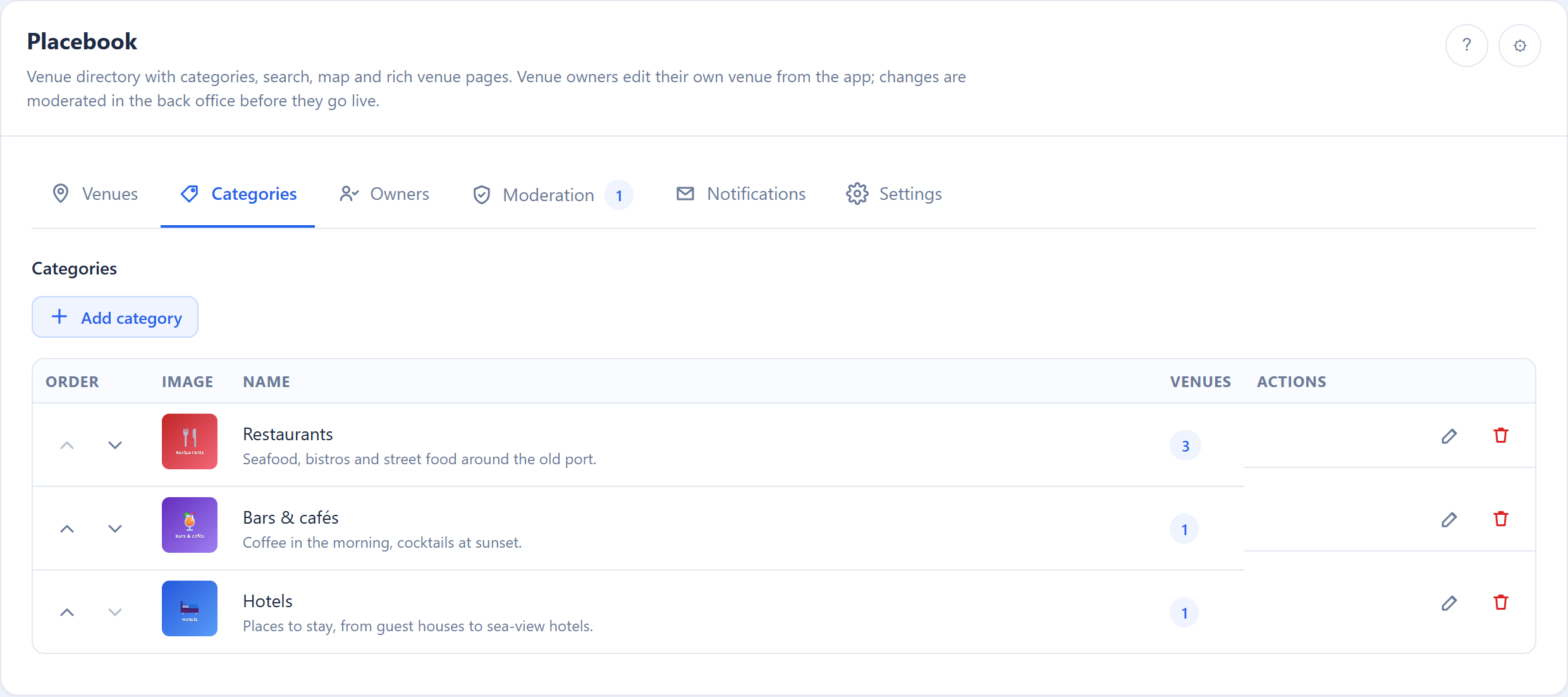
Categories are the filter your visitors use. Each has a title, an optional description and an optional picture (512 × 512 PNG works well). The arrows change the order shown in the app. Deleting a category keeps the venues; they are only removed from that category.
Owners
An owner is an app user who can edit one venue from inside the app. There is no separate password: they sign in to your app as usual.
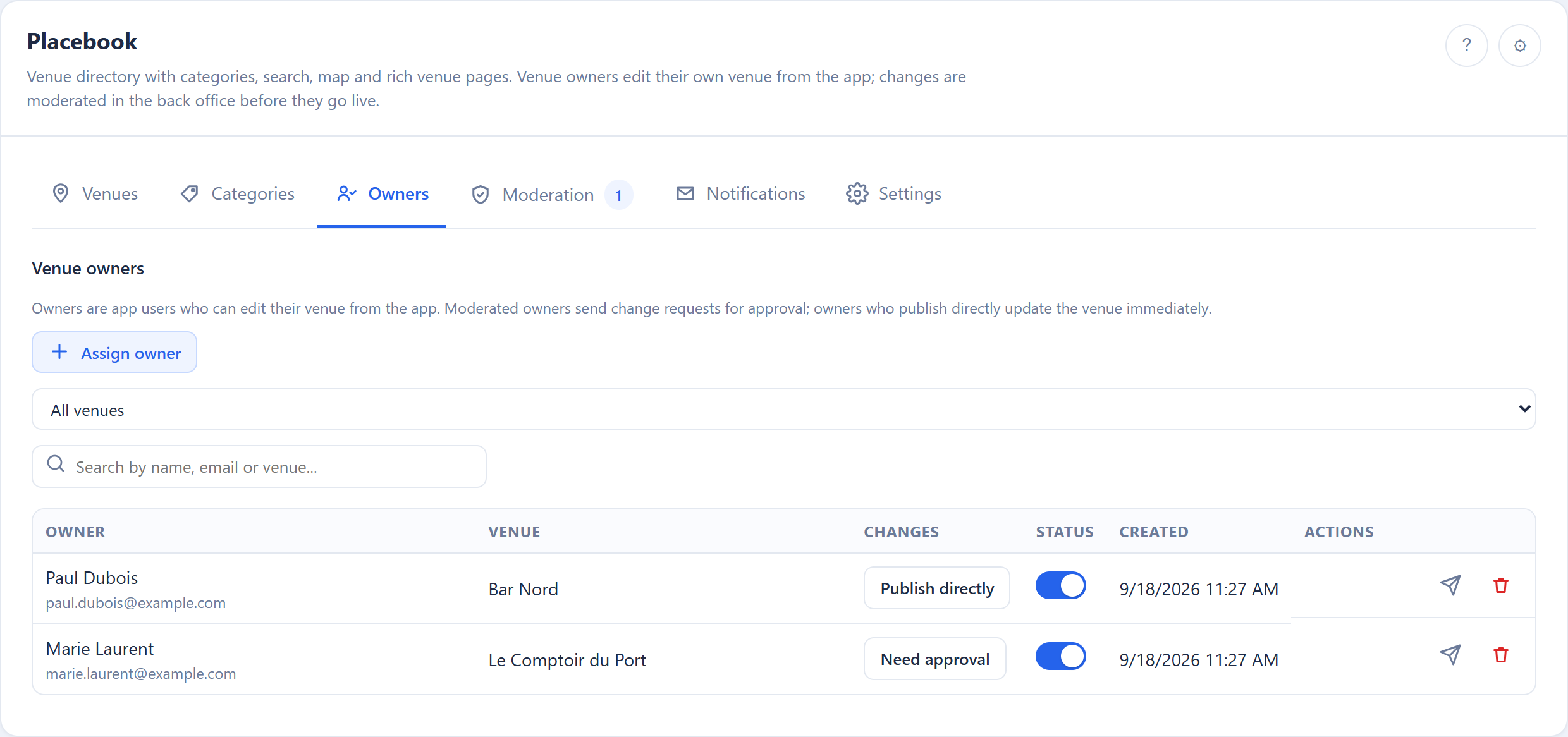
Assign owner asks for:
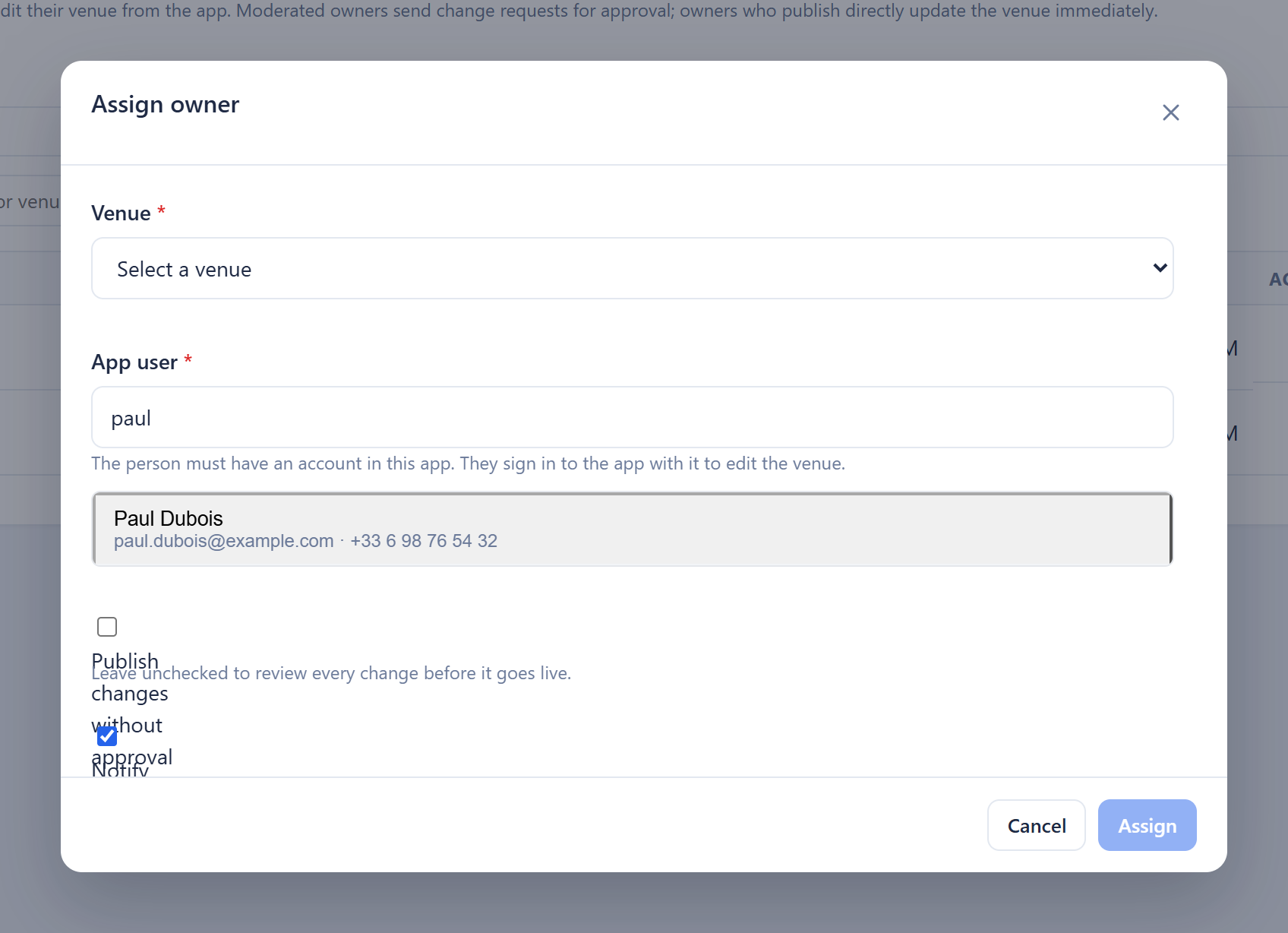
- The venue.
- The app user — search by name, email or phone. Only users of this app appear.
- Publish changes without approval — leave it off and every change comes to you first; switch it on and their changes go live immediately.
- Notify the owner — sends the "you can now manage this venue" email.
In the list you can switch a person between Publish directly and Need approval, deactivate them (they keep the row but lose access), send the notification again, or remove them. Removing an owner withdraws any request they still have waiting.
Moderation
Every change an owner sends arrives here.
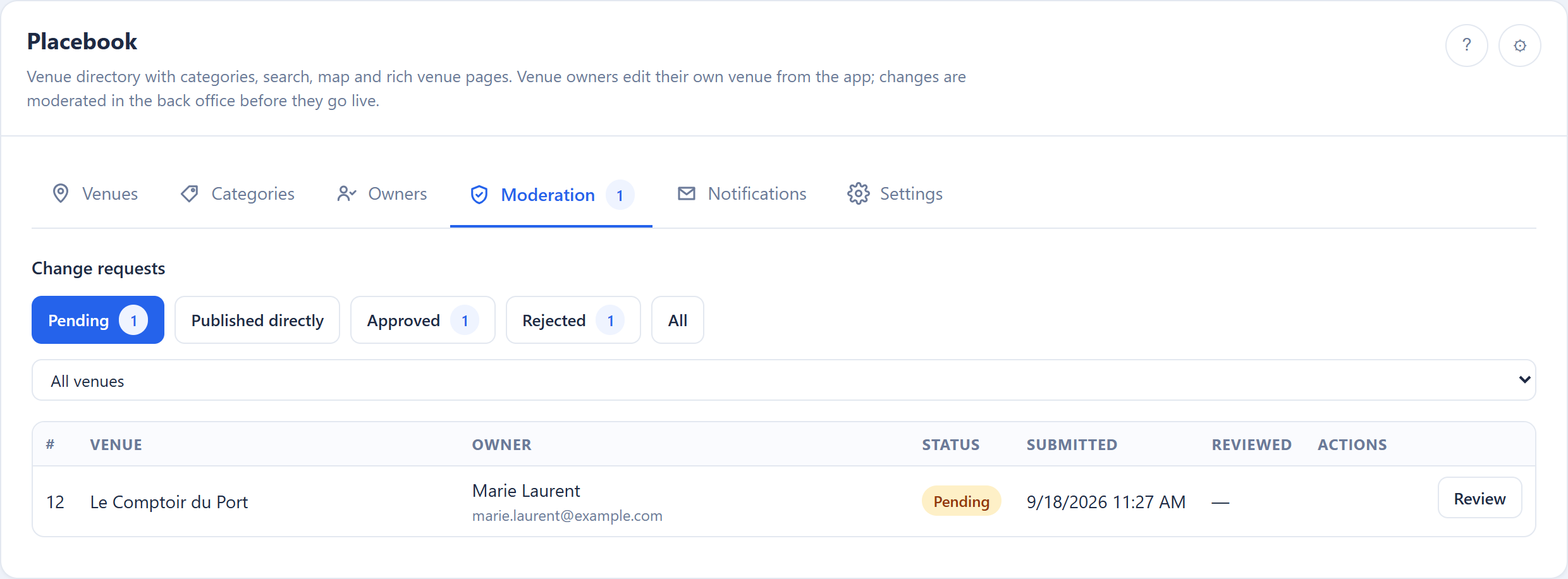
Filter by status: pending, approved, rejected, published directly, replaced or withdrawn. Review opens the comparison.
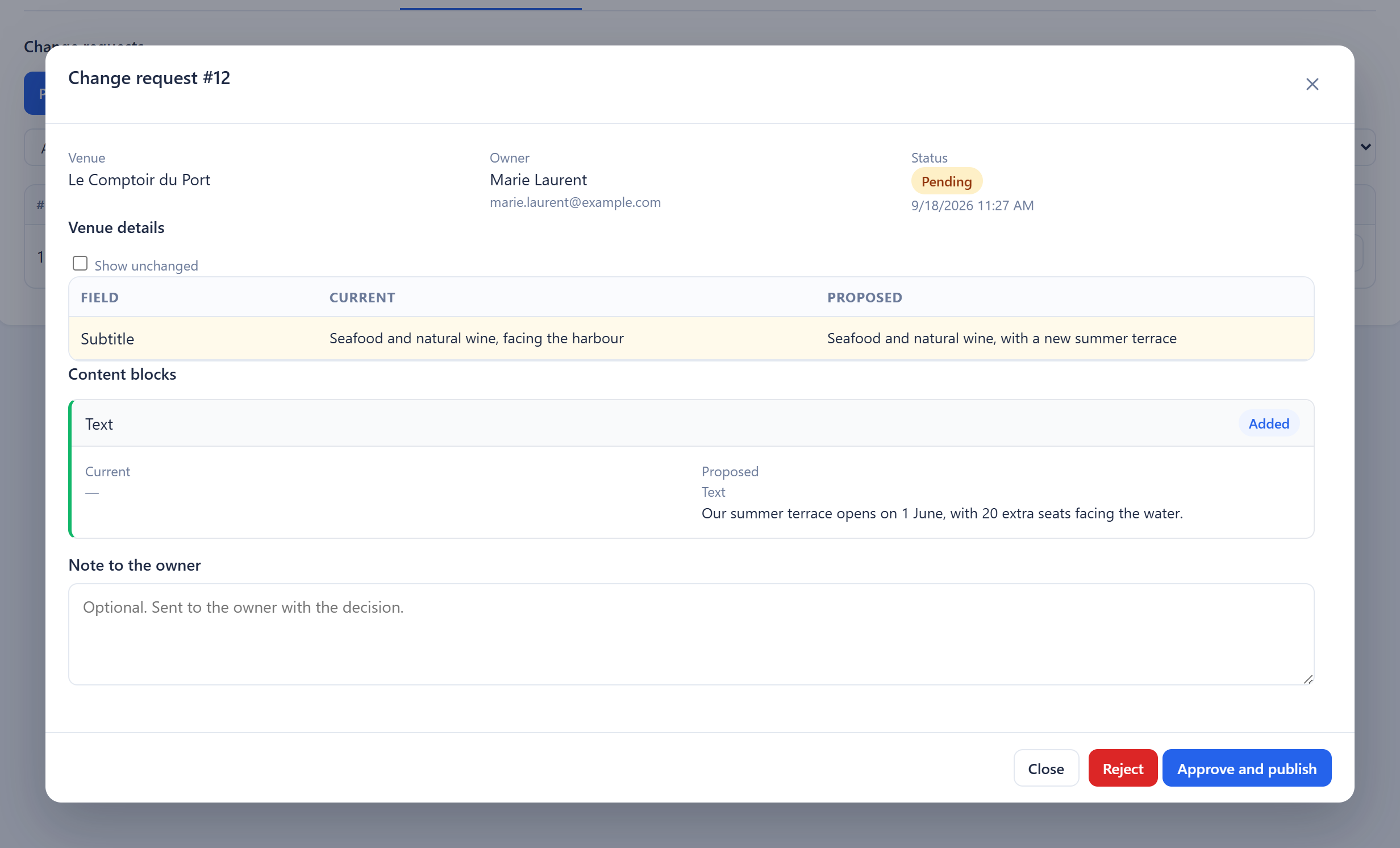
- Venue details lists every field that changed, current value next to proposed value. Show unchanged reveals the rest.
- Content compares the blocks and marks each Added, Changed, Removed, Moved or Unchanged.
- Everything is shown as plain text, so nothing in a request can affect your back office.
- A warning appears if the venue was edited after the owner started the request — approving replaces the current venue with their version.
- Note to the owner is optional for approval and recommended for rejection; it goes out with the decision email.
- Reject never changes the venue. Approve and publish applies the request.
Notifications
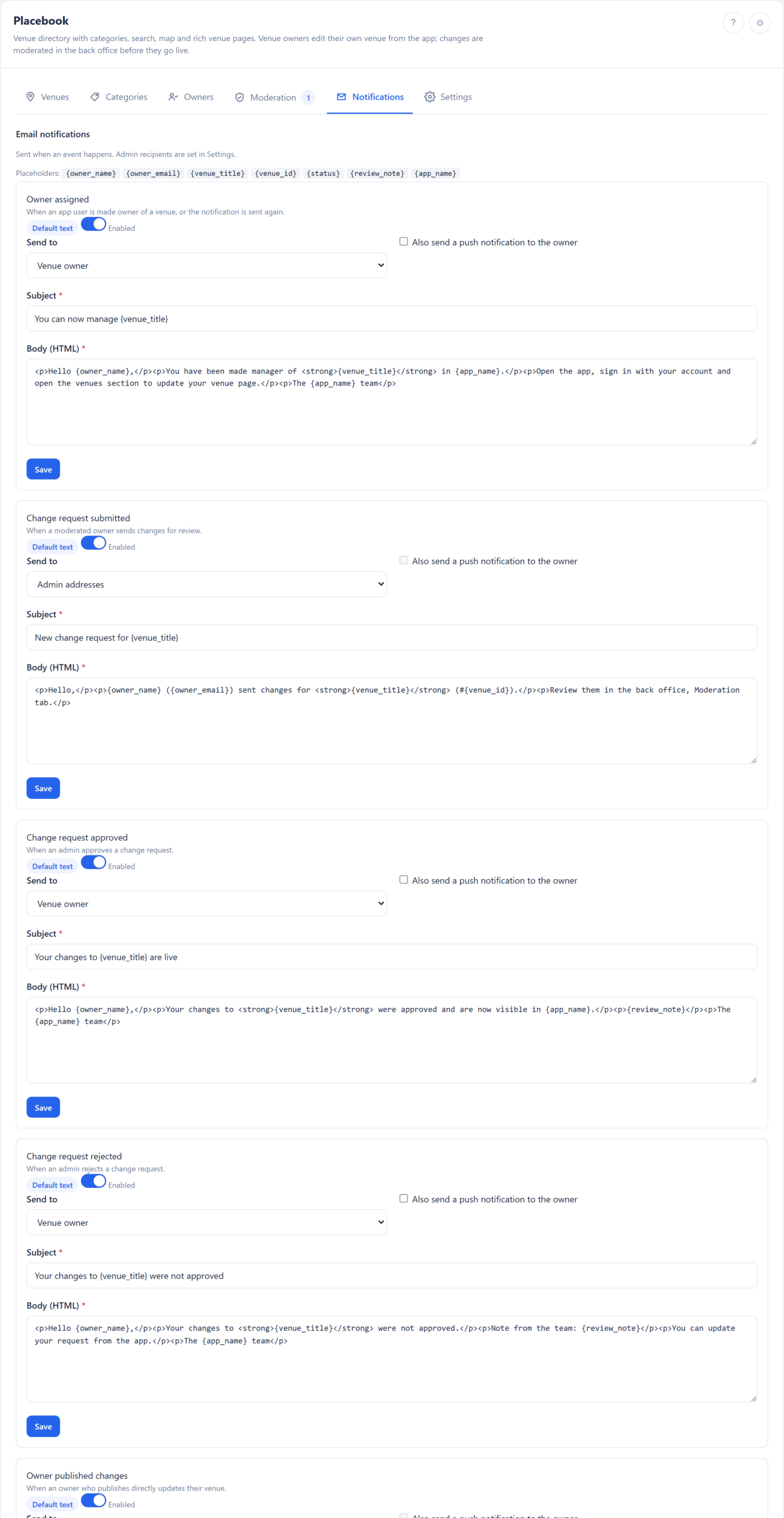
Five events, each with its own message:
| Event | Sent when |
|---|---|
| Owner assigned | Someone is made owner of a venue, or you resend it |
| Change request submitted | A moderated owner sends changes |
| Change request approved | You approve a request |
| Change request rejected | You reject a request |
| Owner published changes | An owner who publishes directly updates their venue |
For each one: switch it on or off, choose who receives it (the venue owner, your admin addresses, or both), optionally also send a push notification to the owner, and edit the subject and the HTML body. Restore default brings back the standard text in the current language.
Placeholders: @@owner_name@@, @@owner_email@@, @@venue_title@@, @@venue_id@@, @@status@@, @@review_note@@, @@app_name@@.
Recent deliveries records every attempt — event, channel, recipient, result and reason — so a failed email is visible instead of silent.
Settings
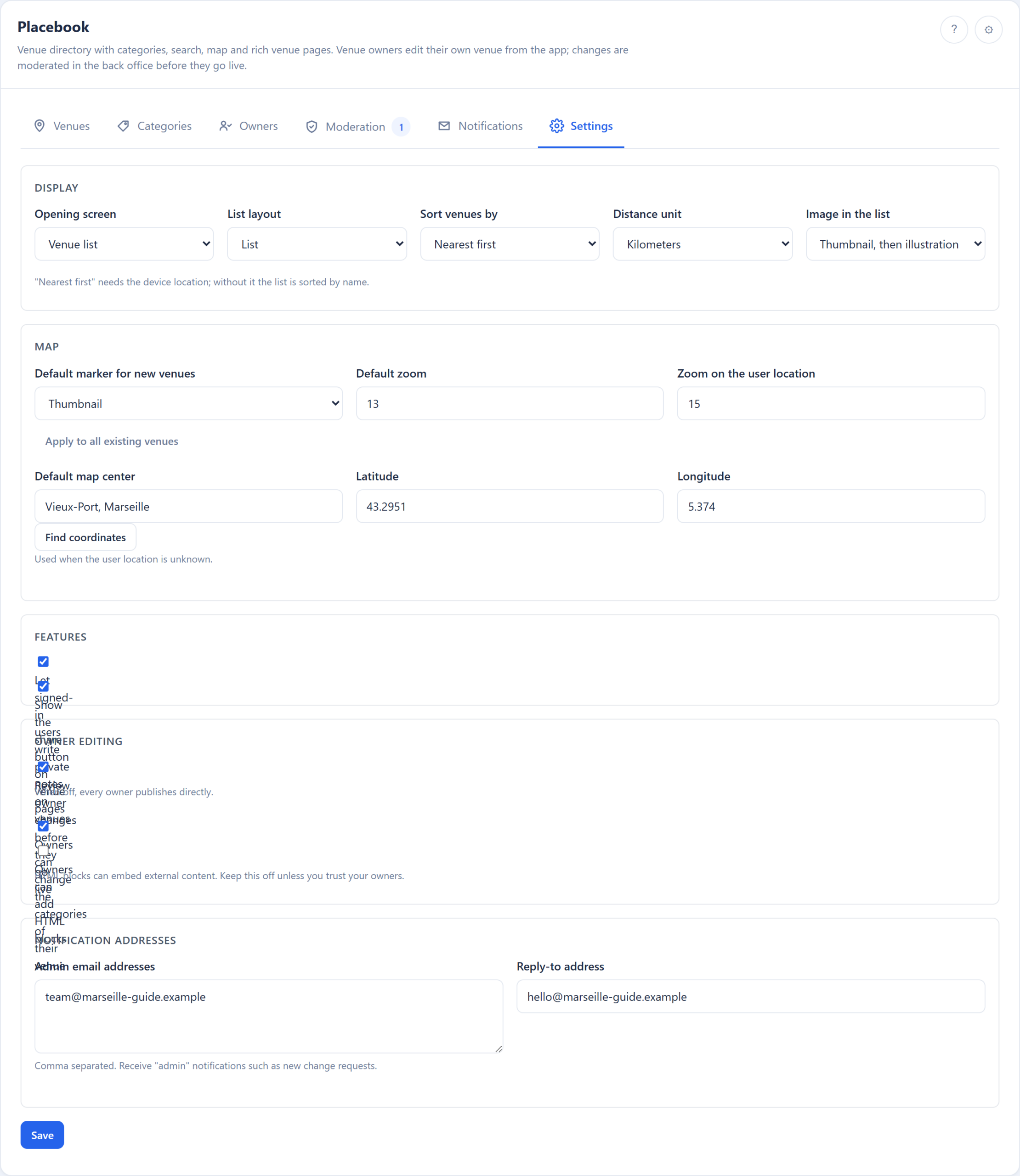
Display
| Setting | Options |
|---|---|
| Opening screen | Venue list, Categories, Map |
| List layout | List or grid |
| Sort venues by | Nearest first, Name, Newest first |
| Distance unit | Kilometers or miles |
| Image in the list | Thumbnail first, or illustration first |
Nearest first needs the visitor's location; without it the list is sorted by name.
Map
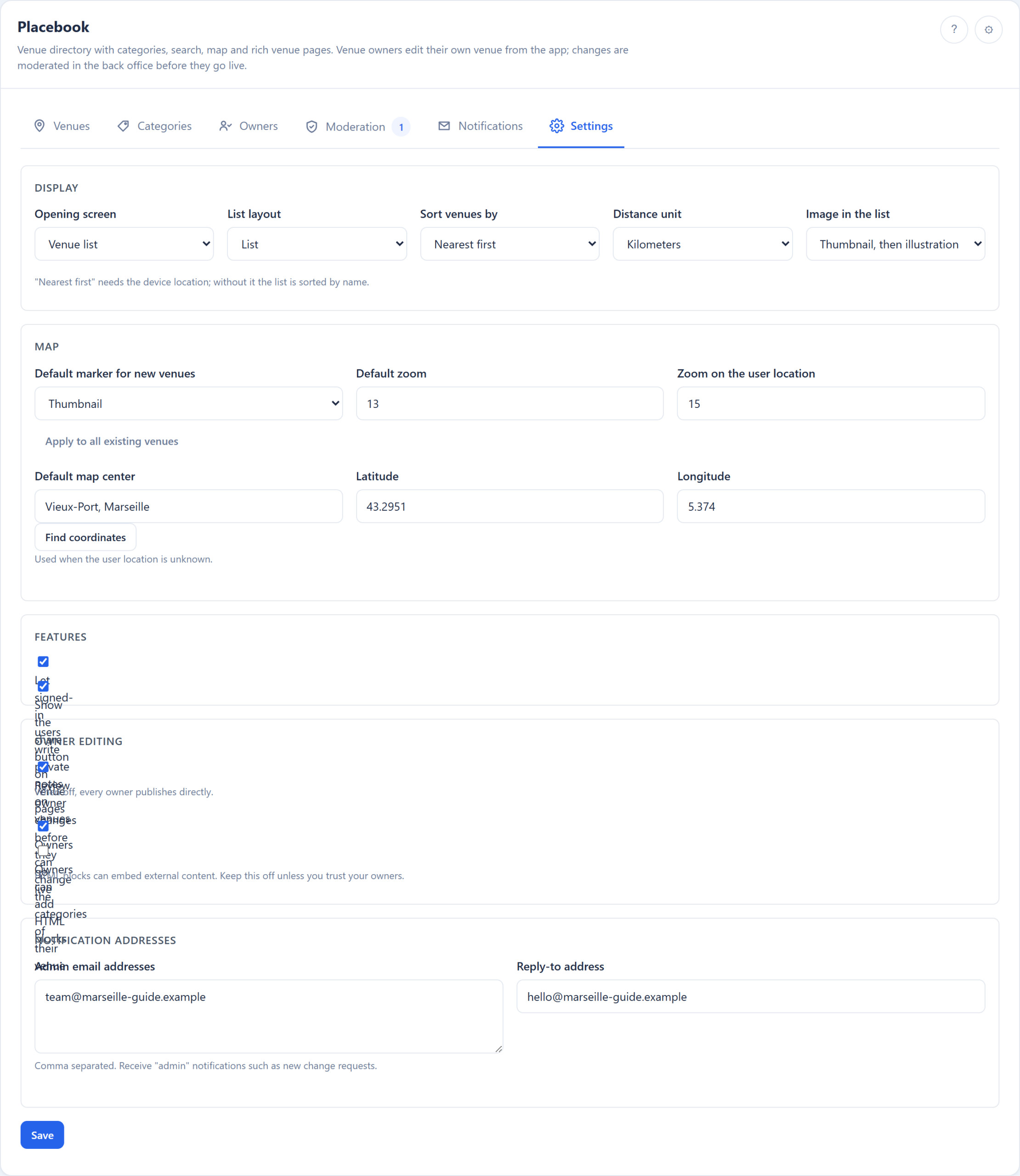
Choose the default marker for new venues (and apply it to all existing venues in one click), the default zoom, the zoom used when the visitor's position is known, and the map centre used when it is not.
Features
- Let signed-in users write private notes on venues.
- Show the share button on venue pages.
Owner editing
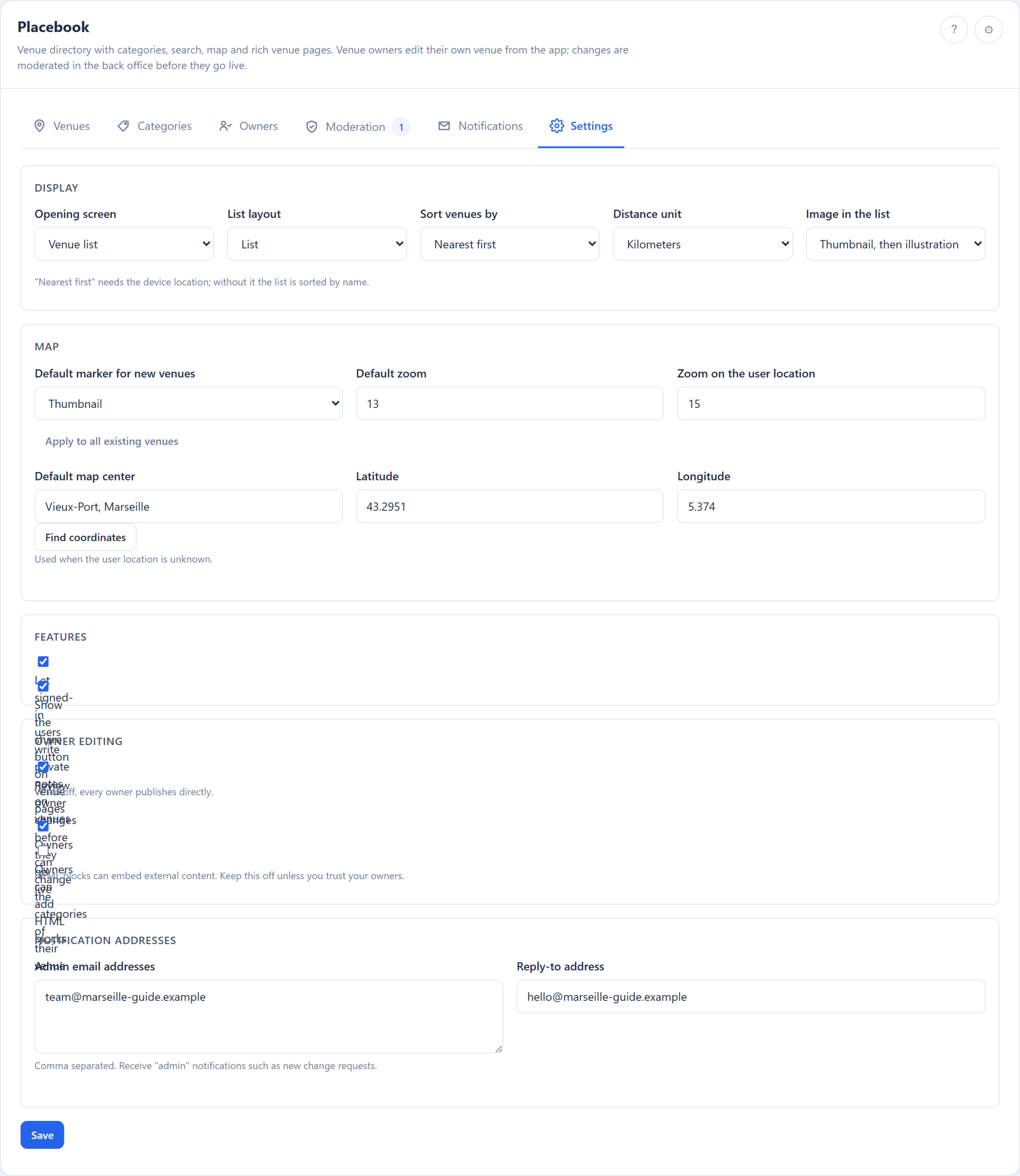
- Review owner changes before they go live — turn this off and every owner publishes directly.
- Owners can change the categories of their venue.
- Owners can add HTML blocks — leave off unless you trust them. With it off, an owner can keep an HTML block you created but cannot edit or add one.
Notification addresses
- Admin email addresses — comma separated; they receive the "admin" notifications such as new change requests.
- Reply-to address.
Everyday tasks
| Task | Steps |
|---|---|
| Add a place | Venues → Add venue → fill General, Images, Location → add blocks → Save |
| Hide a place temporarily | Open it, switch off Published in the app, Save |
| Let a restaurant update its own page | Owners → Assign owner → choose venue and user → decide approval → Save |
| Approve a change | Moderation → Review → read the diff → Approve and publish |
| Stop reviewing a trusted owner | Owners → switch them to Publish directly |
| Change the wording of an email | Notifications → pick the event → edit → Save |
| Move the map to your city | Settings → Map → type the address → Find coordinates → Save |
In the app #
What people see on their phone. Useful for support, for testing, or as the basis of a help page inside your app.
For visitors
The list
- Search by name, tag or category.
- Filter with the category chips.
- Switch between list and grid.
- When the phone shares its location, each venue shows its distance and the nearest ones come first.
- Scrolling loads more venues automatically.
Categories
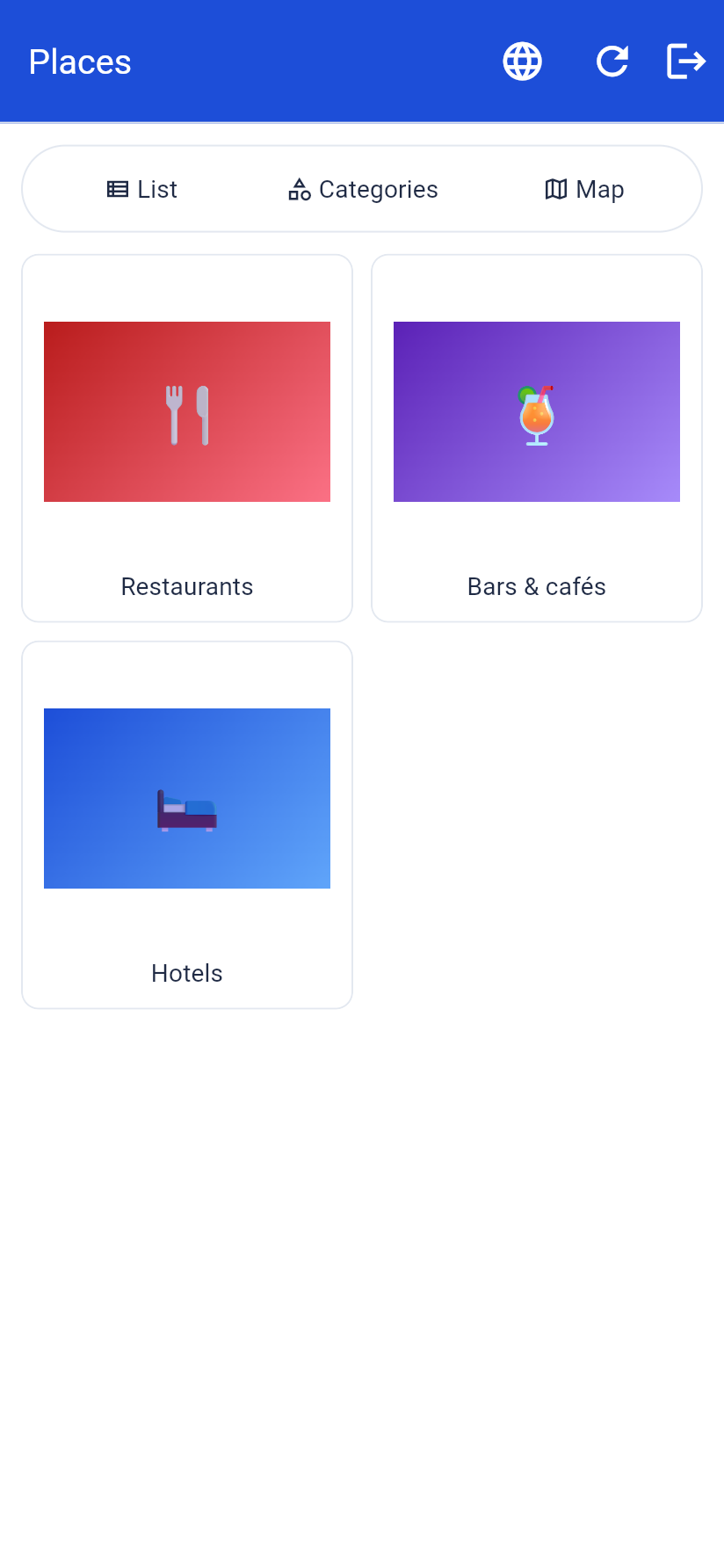
A picture per category; tap one to see its venues.
Map
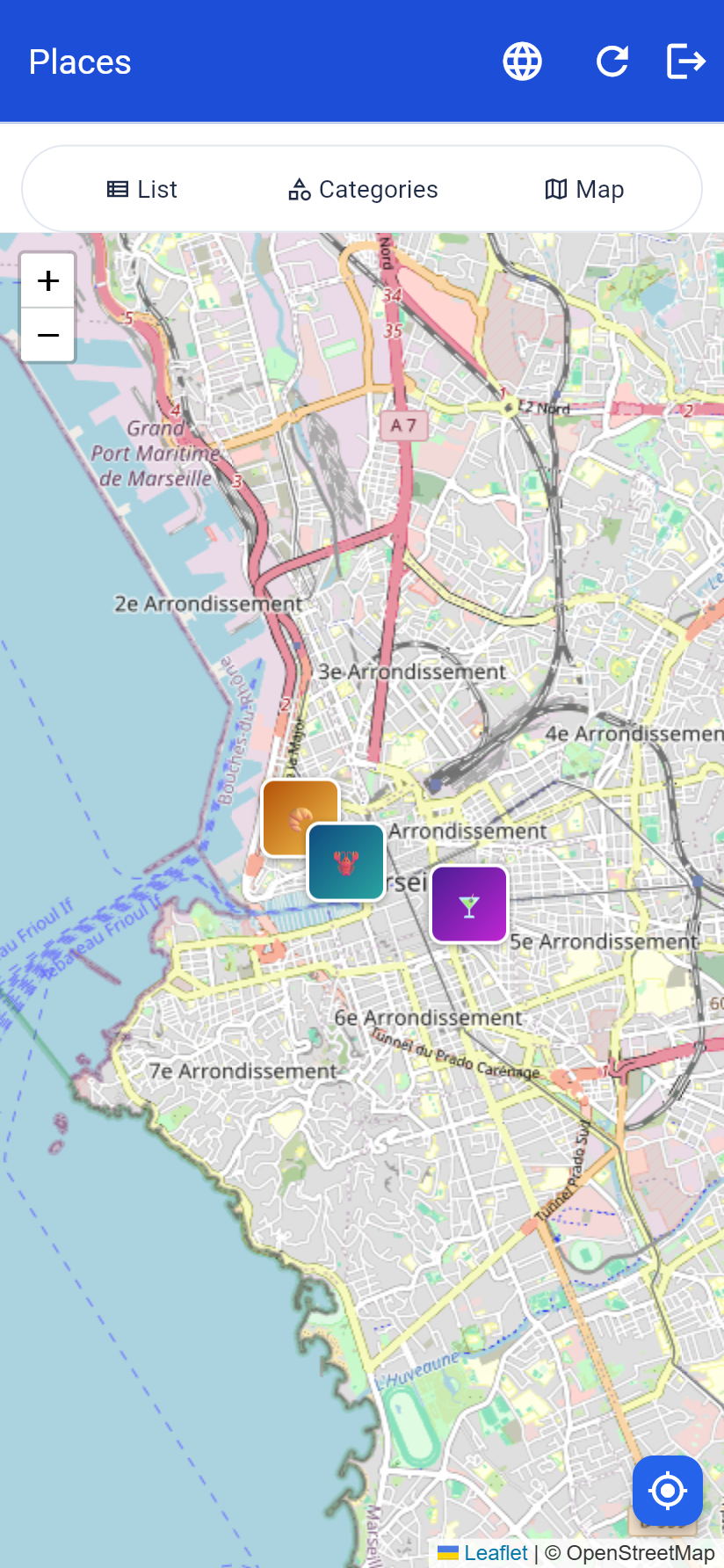
- A marker per venue, using the marker you chose on the MAB side.
- Tap a marker for a small card, then tap the card to open the page.
- The button at the bottom right centres the map on the visitor.
- Moving the map loads the venues in view.
A venue page
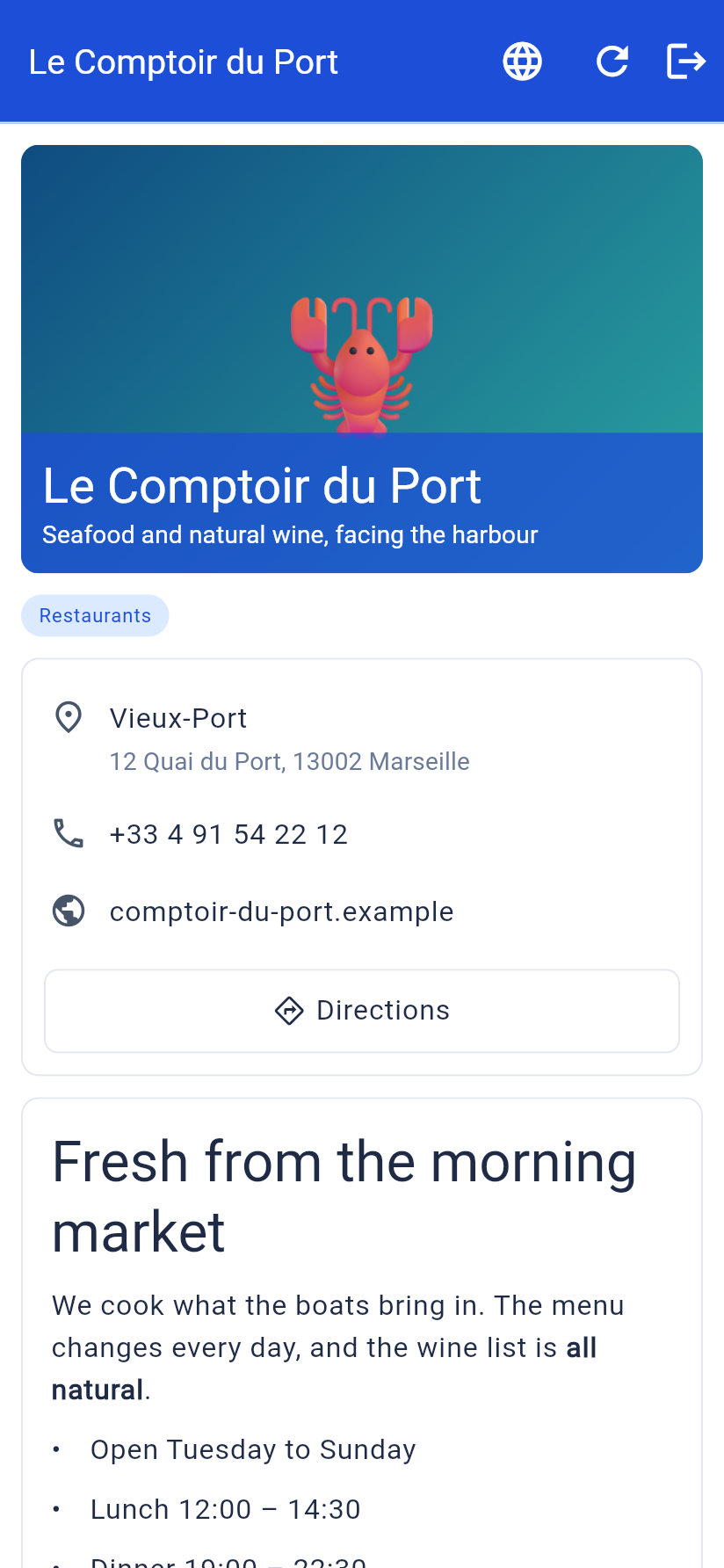
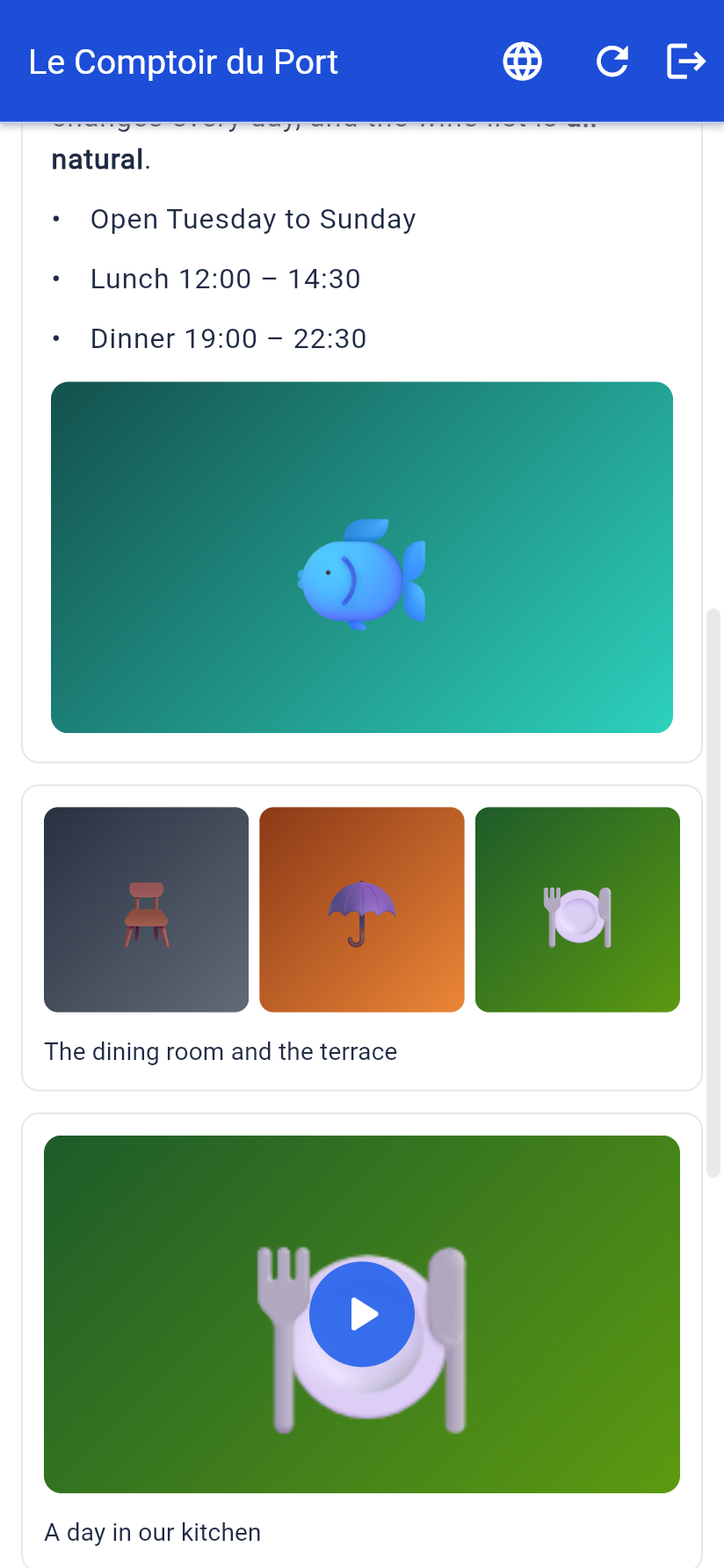
The header image, title and subtitle, then the blocks you added: text, photos, sliders, videos, buttons, files and addresses. At the location you get Directions, Call and Website, depending on what is filled in and switched on, plus Share if sharing is enabled.
Private notes
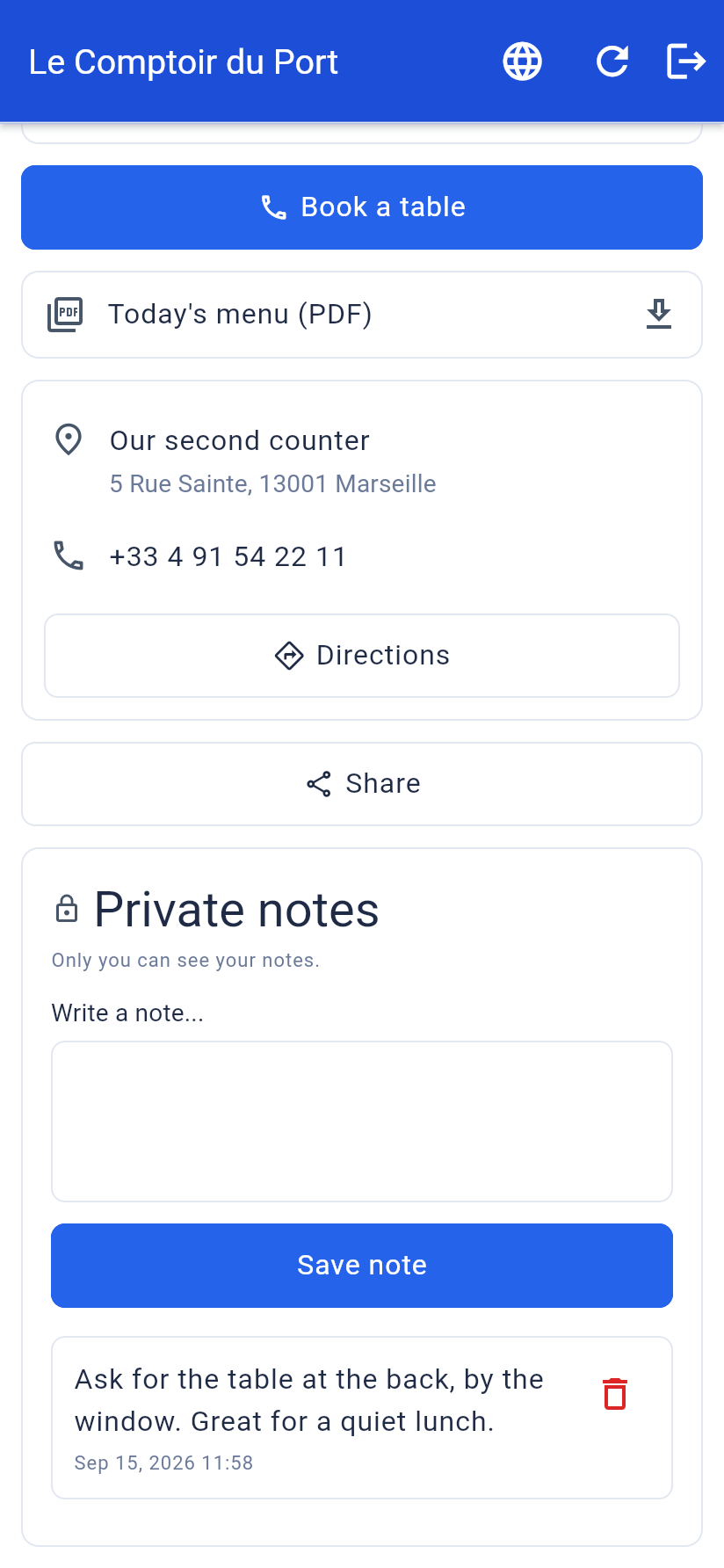
If notes are enabled, a signed-in visitor can write notes on a venue. They are private: nobody else, not even you, sees them in the app. Notes need at least 10 characters.
For venue owners
Someone who manages a venue sees one extra entry: My venues.
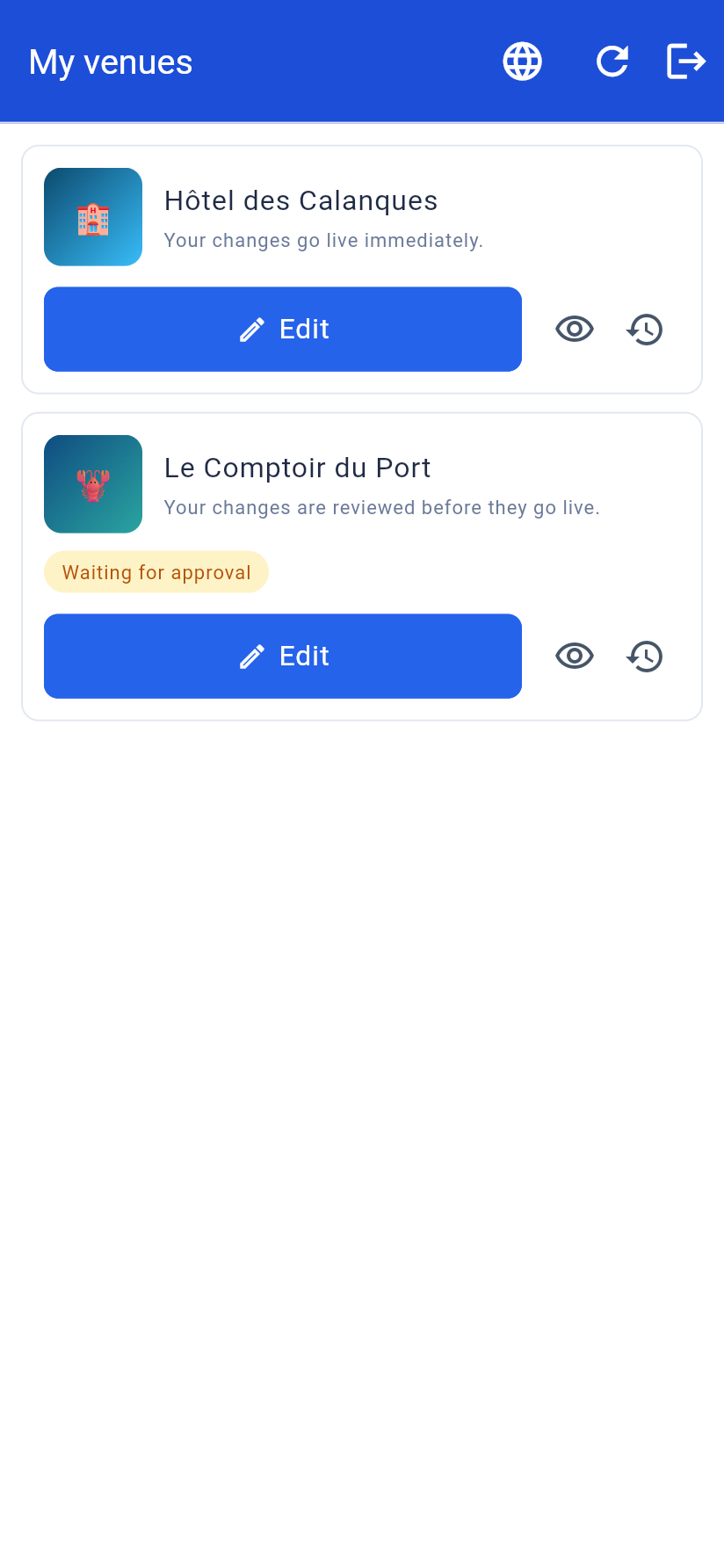
Each venue shows whether their changes go live immediately or are reviewed, plus a badge when a request is waiting or was not approved, with your note. Three buttons: Edit, View (preview, even if the venue is unpublished) and History.
The editor
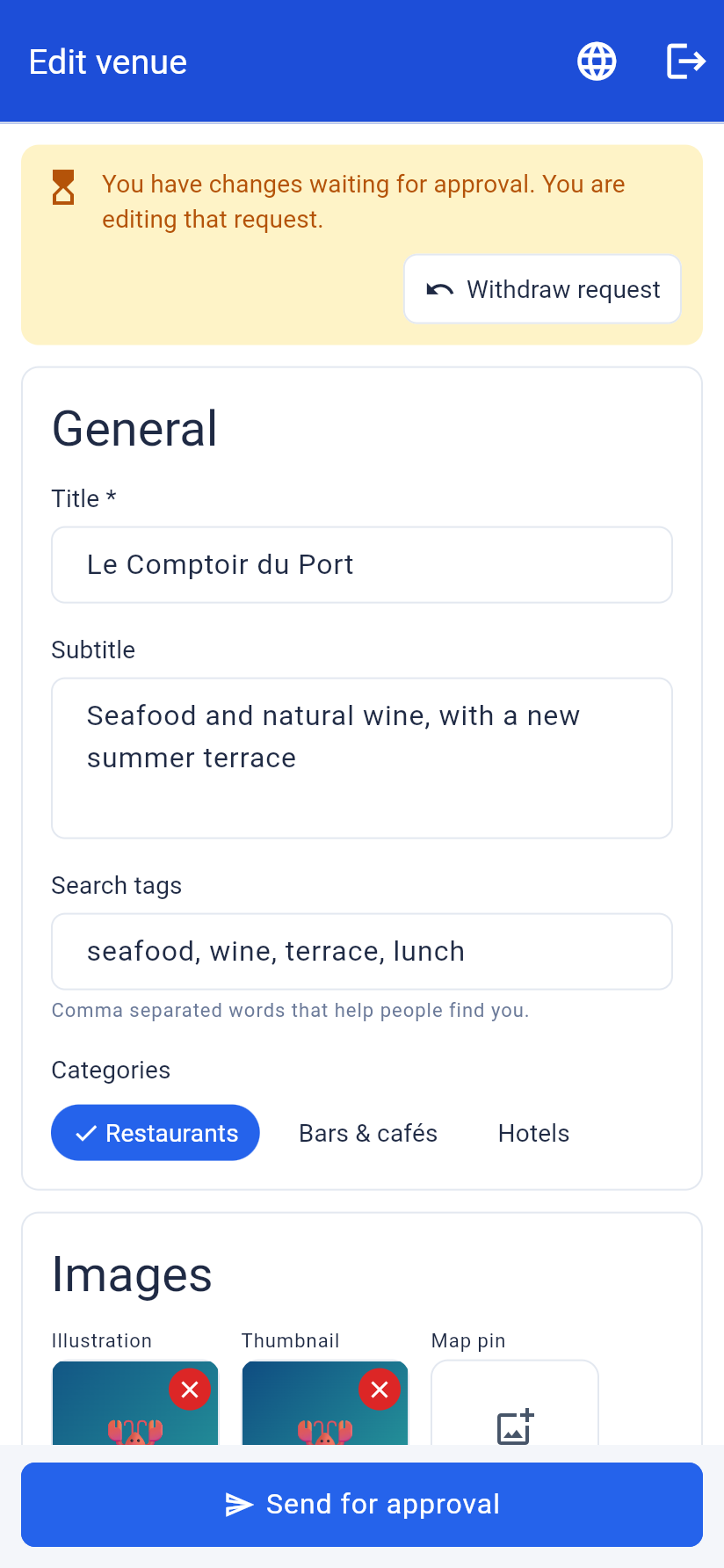
Sections: General, Images, Location and Content — the same fields you have in the MAB side, minus the parts you kept for yourself.
Photos and files are uploaded straight from the phone. If HTML blocks are not allowed, an existing HTML block appears as "This block can only be changed by the app team." and stays on the page exactly as you wrote it.
Sending changes
The button at the bottom reads Send for approval or Publish changes.
- Missing or wrong fields are marked in red with the reason.
- Sending without changing anything says so instead of creating an empty request.
- While a request waits, the editor shows a banner and reopens their pending version, so they can keep editing it. Withdraw request cancels it.
- Leaving with unsent changes asks for confirmation.
History
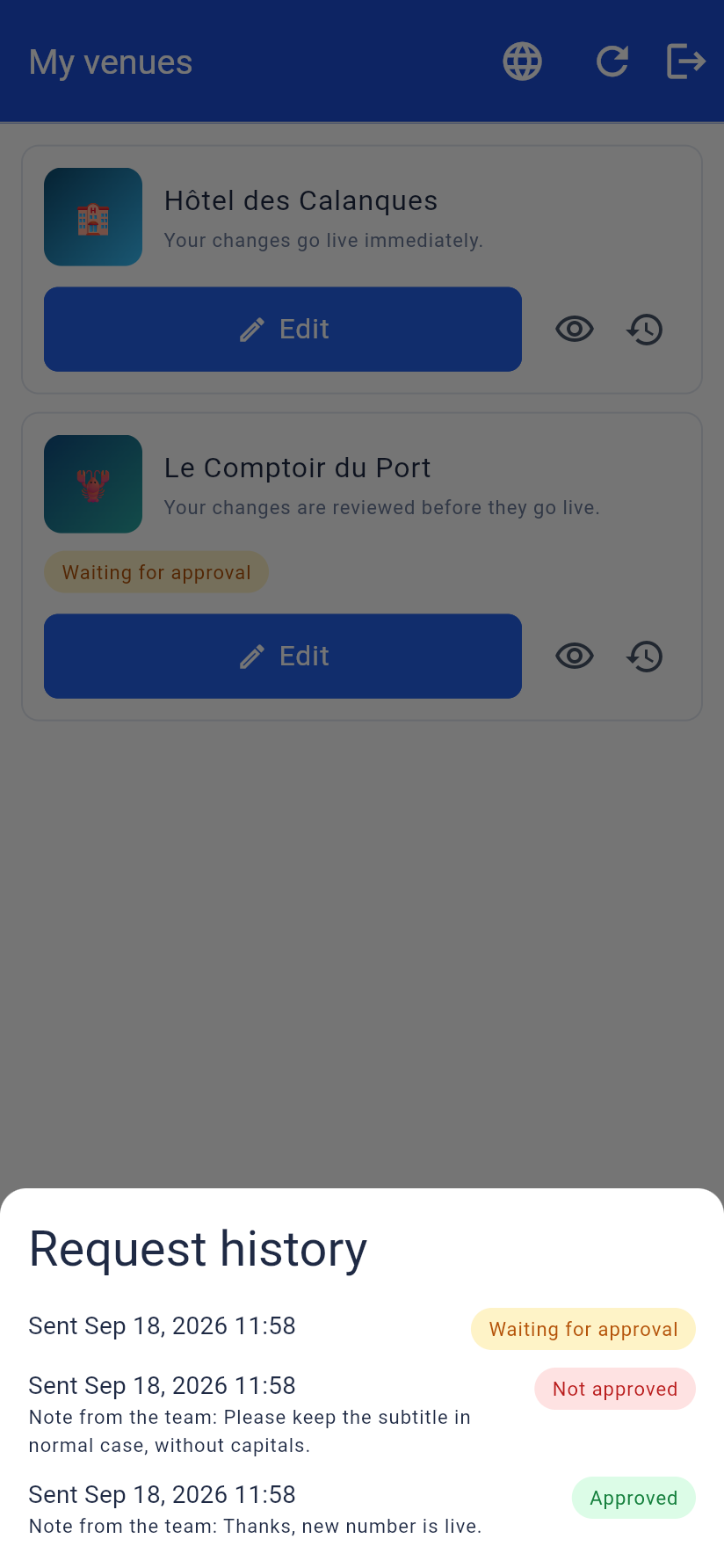
Every request with its date, its result, and your note when there is one.
Limits
| Thing | Limit |
|---|---|
| Image upload | 5 MB |
| File upload (PDF or image) | 10 MB |
| Blocks per venue | 50 |
| Images per gallery or slider | 20 |
| Note length | 10 characters minimum |
The map needs an internet connection and runs inside the app. Distance and "nearest first" depend on the phone sharing its location.
Guide for venue owners #
Send this section to the restaurant, shop or hotel owner who will look after their own page. Replace "the app" with your app's name.
You can update your own page from the app. No website to learn, no password to remember: you sign in to the app with your normal account.
Getting started
- Open the app and sign in with the email address the team used for you.
- Open the venues section and tap My venues.
- Tap Edit on your place.
What you can change
- Name and short description.
- Search words — words people might type to find you, like pizza, terrace, garden. They are not shown on your page.
- Photos — the big picture at the top, the small one in the list, and the marker on the map.
- Address and contact — address, phone, website. Press Find on map after changing the address so your marker moves to the right place.
- Your content — add as many parts as you like, in any order:
| Part | Good for |
|---|---|
| Text | Opening hours, your story, offers |
| Photos | A gallery of your dishes, rooms or products |
| Slider | Photos one by one |
| Cover picture | One wide photo |
| Video | A YouTube or Vimeo link |
| Button | Call, email, or a link to booking |
| File | A PDF menu or price list |
| Another address | A second branch |
Saving your changes
At the bottom you will see Send for approval or Publish changes.
- Publish changes — your page updates right away.
- Send for approval — the team looks at it first. Until they answer, your page stays as it was and the editor shows "You have changes waiting for approval". You can keep editing that request, or tap Withdraw request to cancel it.
If something is missing, the field turns red and tells you what to fix, for example an empty address.
Checking what happened
History shows every request you sent, the date and the result. If a request was not approved, the team's note appears there so you know what to change.
Common questions
- Can I see my page before it is published?
- Yes — View shows it exactly as visitors will see it.
- I changed nothing and it says so.
- That message appears when the page is identical to what is already published.
- My photo will not upload.
- Photos must be under 5 MB, PDF files under 10 MB.
- I cannot edit one part of my page.
- Blocks marked "This block can only be changed by the app team" are managed by the team; ask them to update it.
Questions and fixes #
Setting up
- Do I need a Google Maps key?
- Not to use the module: without a key the map uses OpenStreetMap. You do need one for Find coordinates / Find on map and for Google Maps itself. Add it as
google_mapin the application's API keys. - A venue does not appear on the map.
- Either it has no coordinates (open it and press Find coordinates), or Hide on the map is on, or it is not published.
- Why is the list not sorted by distance?
- The phone did not share its location. The list falls back to sorting by name; on Android the app also needs location permission.
- Can one person manage several venues?
- Yes, and a venue can have several managers.
Owners and moderation
- An owner cannot see "My venues".
- Check three things: they are signed in with the account you assigned, that account belongs to this app, and their owner row is active in the Owners tab.
- I want a trusted owner to skip approval.
- Owners tab → switch them to Publish directly. To skip approval for everyone, turn off Review owner changes before they go live in Settings.
- What happens to pending requests when I remove an owner?
- They are withdrawn automatically.
- An owner sent the same request twice.
- The newer one replaces the older one, which is marked Replaced. Only the newest waits for you.
- I rejected by mistake.
- A rejected request cannot be approved afterwards; ask the owner to send it again.
- Does rejecting change the venue?
- No. Only Approve and publish changes it.
Content
- Can owners break the page with HTML?
- Only if you allow HTML blocks in Settings. Scripts and event handlers are stripped either way, and with the setting off an owner cannot add or edit an HTML block at all.
- Which video links work?
- YouTube, Vimeo, or a direct link to a video file.
- What image sizes should I use?
- Illustration 700 × 440, thumbnail 256 × 256, map pin 128 × 128, category picture 512 × 512.
- Can I delete a category that has venues?
- Yes. The venues stay, they simply leave that category.
Notifications
- Emails are not arriving.
- Open Recent deliveries under Notifications: every attempt is recorded with its result. If the event is missing there it is switched off; skipped means the recipient had no address; failed shows the reason from the mail server.
- Who gets "admin" emails?
- The addresses in Settings → Admin email addresses.
- Push notifications?
- Switch on Also send a push notification to the owner for an event. It needs the Push Notifications module installed; without it, only email is sent.
Your data
- What happens to pictures when I delete a venue?
- They are deleted with it. Pictures you uploaded to other venues are untouched.
- Can I bring across my old data?
- Yes. Venues, categories, their content, notes, owners and the email texts can be imported from the previous system. Owners are matched by email address, and anyone without a matching account in your app is reported so you can invite them. Ask your provider to run the import; they can do a trial run first that changes nothing.
- The app shows "Module not implemented".
- The app has not finished rebuilding. Give it a few minutes, then open the preview in a private window — the old version can be kept in the browser's memory.
- I updated the module but nothing changed.
- The new version needs a higher version number than the installed one, otherwise the upload is refused. Your provider handles that when they send you the update.