
By the end of this guide you’ll have a working app for your business — with the right features already in place — ready to customize and share. The whole thing takes about ten minutes, and most of that is the platform working, not you.
Before you start #
- Know your business — that’s genuinely the only requirement. No design skills, no code.
- Have your logo handy if you have one (PNG or JPG, square works best). Don’t have one? Skip it — you can add it any time later.
- Verify your email if you haven’t yet — you’ll need it verified to publish your app later, so one click now saves a pause later.
Describe your app in plain words #
Press Create App and you’ll see one simple form: your app’s name, and a box where you describe what you want.
Write the way you’d explain your business to a friend. What do you do? What should your customers be able to do in the app — book, order, get reminders? For example:
“A salon app where customers book appointments online, collect loyalty stamps, see our services and prices, and get reminders on WhatsApp.”
Stuck staring at the empty box? Tap one of the Pick most common shortcuts under it — Salon, Dental clinic, Restaurant, Gym, Shop, School. Each one fills in a ready-made description you can edit to match your business.
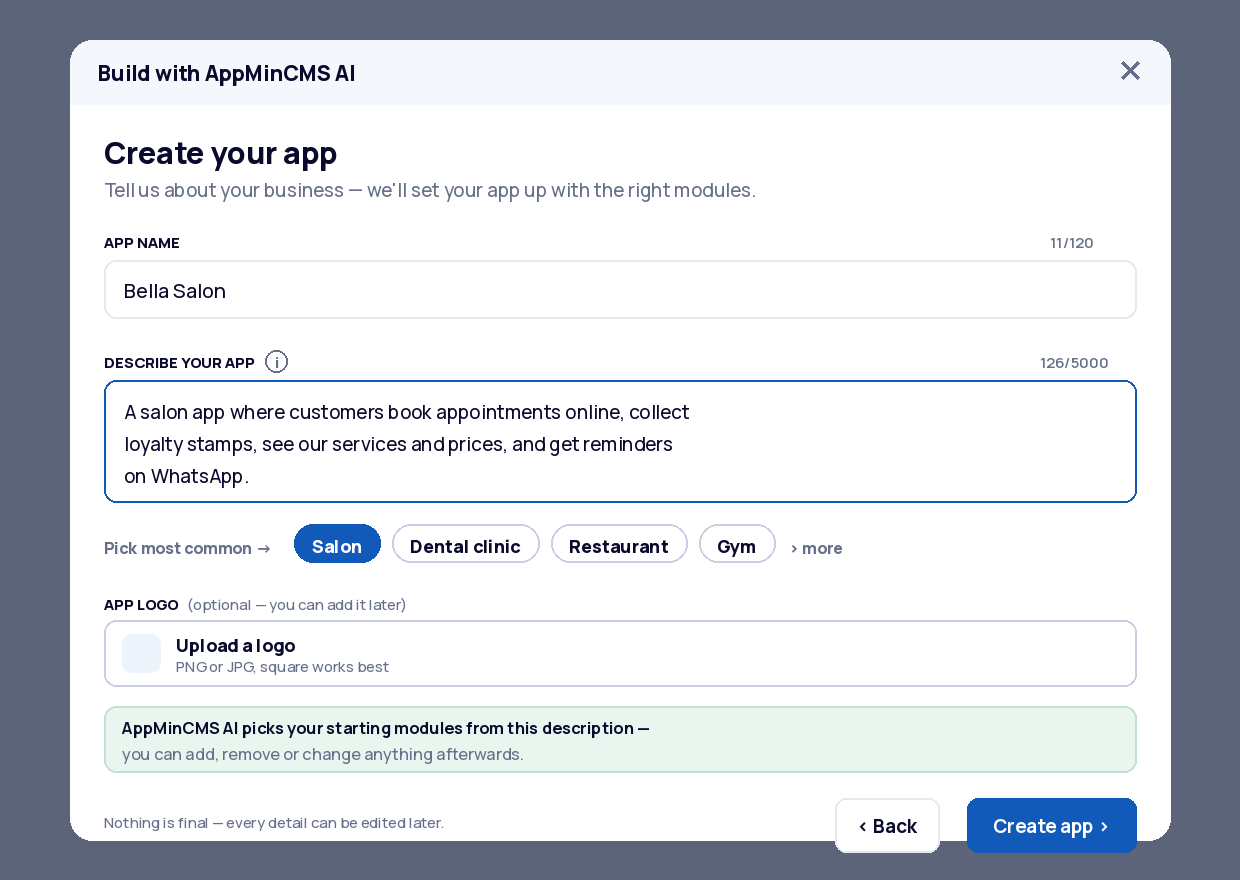
Good descriptions mention three things: what you sell or do, what customers should be able to do in the app, and how you want to reach them (WhatsApp, notifications, email).
Let the platform build it #
Press Create app and AppMinCMS AI reads your description, picks the right building blocks — we call them modules — and assembles your app: appointments if you take bookings, customer accounts, messaging, and so on. You’ll watch it happen step by step; it takes under a minute.
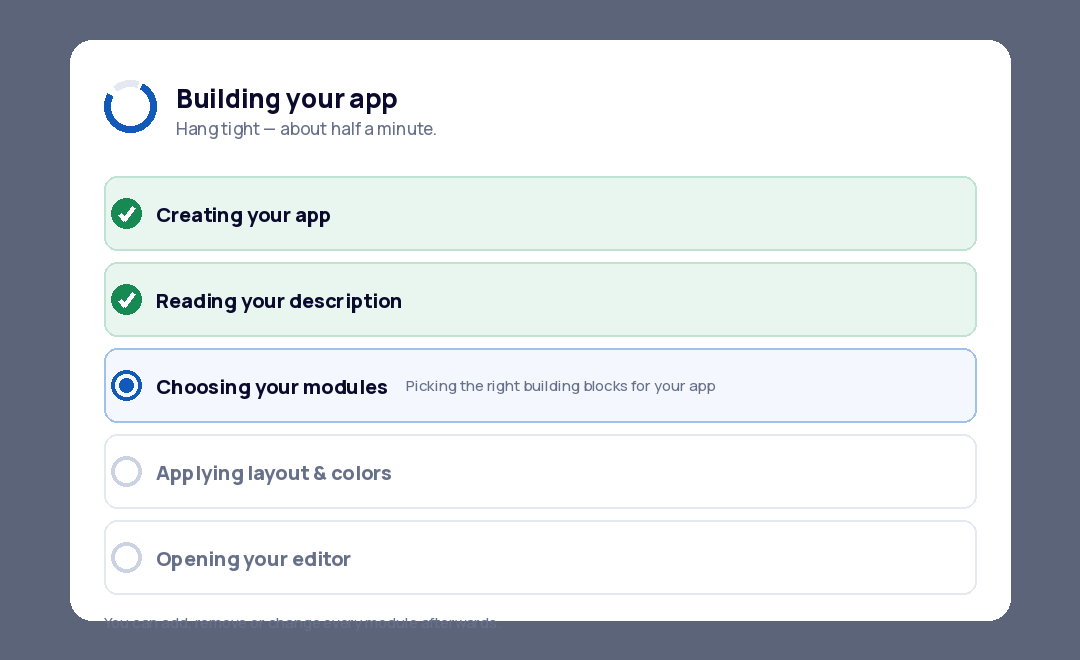
Nothing here is final. Every module the AI picks can be removed, and any module it didn’t pick can be added later — think of it as a head start, not a decision.
Look around your app #
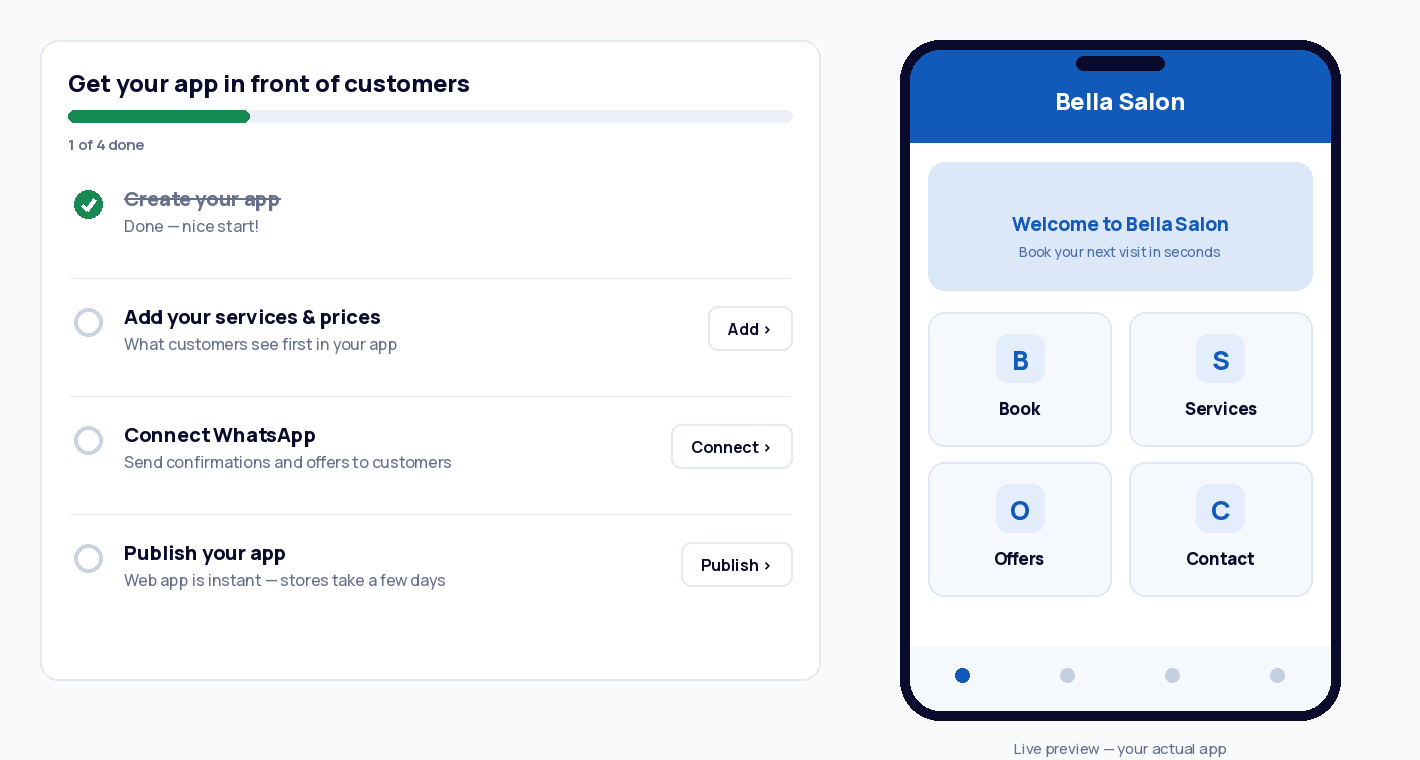
When the build finishes, your editor opens with a live preview — a phone on the right showing your actual app. Tap through it. Change something on the left and watch the phone update.
Your dashboard also gives you a short checklist — Get your app in front of customers — with the next steps in order. You’ve already done the first one.
What “modules” means #
Your app is built from modules — independent building blocks that each do one job well: Accounts handles customer sign-ups, Appointment Pro takes bookings, WhatsApp sends messages. You combine the ones your business needs, like ingredients in a recipe. The Marketplace holds all of them; adding one to your app takes a click.
Common questions #
- Can I change the name later?
- Yes — name, logo, colors, modules, everything.
- I made a mess. Can I start over?
- Yes, create a fresh app and describe it again. It’s ten minutes, not a commitment.
- Is it really my app?
- Yes — your content, your customers, your branding. It runs on iOS, Android and the web browser.